We remain fully operational. Our teams are working around the clock to ensure your deliveries continue safely.

下载应用程序


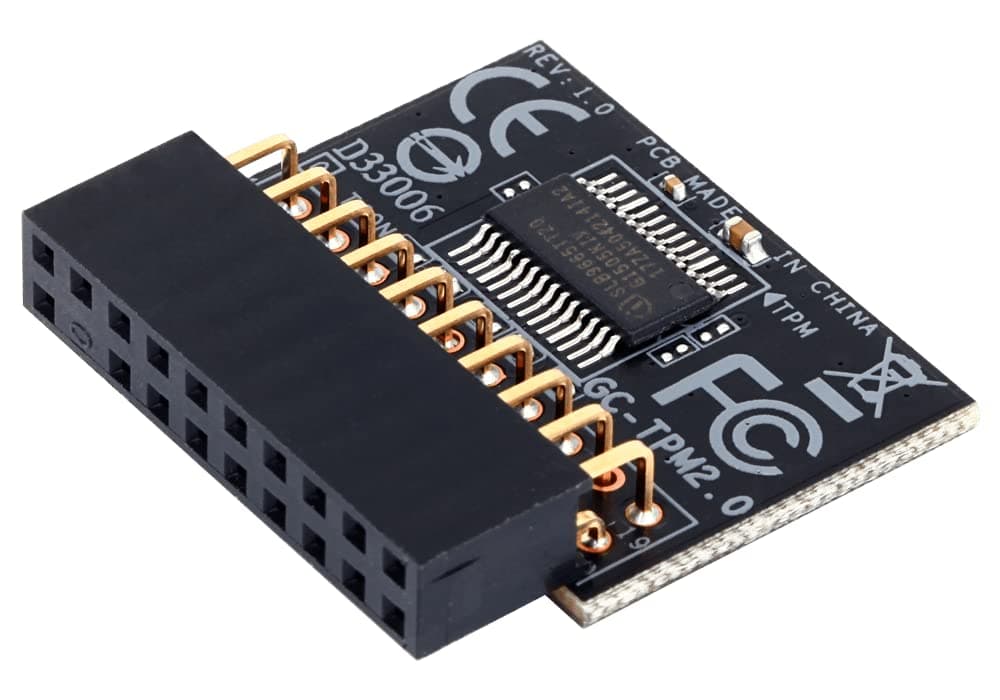

🔐 Lock down your data like a pro with Gigabyte’s GC-TPM 2.0!
The Gigabyte GC-TPM 2.0 is a compact, hardware-based Trusted Platform Module designed to securely store cryptographic keys and enhance your PC’s security. Compatible with Intel and AMD processors and optimized for Gigabyte motherboards, it ensures seamless integration and meets Windows 11 TPM 2.0 requirements, making it an essential upgrade for professionals handling sensitive data.
| ASIN | B01G97X6T4 |
| Available Memory Slots | 1 |
| Brand Name | Gigabyte |
| Compatible Devices | Personal Computer |
| Compatible Processors | Intel, AMD |
| Customer Reviews | 4.0 4.0 out of 5 stars (129) |
| Global Trade Identification Number | 00889523004470 |
| Graphics Card Interface | PCI Express |
| Item Weight | 0.3 Ounces |
| Main Power Connector Type | 24-Pin |
| Manufacturer | Gigabyte |
| Model Name | GC-TPM2.0 |
| Model Number | GC-TPM2.0 |
| Processor Socket | Socket AM4 |
| RAM Memory Technology | DDR4 |
| Total PCIe Ports | 1 |
| Total USB Ports | 6 |
| UPC | 889523004470 |
I**D
Works fine on ASUS X99 board
Used this to enable TPM2.0 in preparatrion for Windows 11 beta. Does not ned to be MB vendor specific, just needs to match the pin out of your board.
E**N
This TPM module as well as working properly connects to the motherboard snugly. I purchased another module for a another gigbyte board, the chip manufactured by msi which is technically a 14 pin but doesn't fit snugly although seems to function okay. Another I purchased by ASUS did not fit at all although still 14 pins. This is because the chip sits on side of connector and needs a special socket to fit. So I recommend consumers only by TPM modules made by the same manufacturer. But this one I bought from Amazon is perfect.
A**R
MSI H110M-SI01というマザーボードで動作しました。 (2016年のマウスコンピュータ製PC) GIGABYTEとMSIでメーカが異なりますが、同じような20-1pinの コネクタだったので、ダメもとで購入しました。 BIOSのバージョンは 06/16/2016です。 UEFIでWindows10を使用しており、Bitlockerで ディスクの暗号化を行うのが目的です。 最悪パソコンが壊れることを想定し、 データをバックアップしておきます。 マザーボード上のTPMと書かれているコネクタに本モジュールを差し込み、 電源を入れ、BIOS画面を表示させます(とりあえず大丈夫そう)。 やったこと: (1)BIOS画面→Advanced→Trusted Platform ModuleでTPM Support を Enabled にします。 パワーオフしてオンすることでBIOSに認識されるようになります。 Device Selectは AUTO (これだけですとWindows10のデバイスマネージャーにセキュリティデバイスが 表示(トラステッド プラットフォーム モジュール 2.0)されるだけで、 tpm.mscを起動しても認識されません) (2)BIOS画面→Chipset→ME Configurationで、 TPM Device Selection dTPM1.2 とします。 (これでtpm.mscでも認識されるようになります。 が、msinfo32.exeで確認すると「セキュアブートの状態」は無効のままです。) (3)BIOS画面→Securityを選択します。 →System Mode state が Setup、 Secure Boot stateが Not Active になっているかと思います。 ここで、Secure Boot Modeを Custom にします。 (4)Key Managementという項目が表示されますので、そのモードに入ります。 (5)Enroll all Factory Default keysを選択し、実行します。 (6)ESCでSecurityの画面に戻り、Secure Boot ModeをStandardに戻します。 →System Mode state が User Secure Boot stateが Active になったかと思います。 手順が抜けてたり間違ってたりするかもしれませんが、 とりあえずBitlockerで暗号化できました。
A**N
Info - Windows 10 x64 Pro PC. Item ordered: Gigabyte GC-TPM2.0 module. Just received this item today. Installed, configured, and drive encrypted in about two hours. Installing and configuring is less than 10 minutes. Drive encryption varies. On my 512gig Samsung 950 Pro SSD drive, 28 percent filled, using BitLocker in Windows 10 x64 Pro, took just under two hours. And yes, Windows 10 will recognize this as a TPM 2.0 device. You can see this in Device Manager under Security devices. That said, you need to make sure it’s properly configured in the BIOS. It should be auto configured (mine was on my Gigabyte board), but double check anyway. Especially that it reads 2.0. With that, install really is a breeze - Just install, start the PC, enter the BIOS and configure if necessary. BIOS configuring is basically making sure the BIOS sees the module and that it is configured as a 2.0 device. Restart the PC, and Windows should see it. You may need an additional reboot as Windows finishes installing drivers, but that’s it. Now go to Control Panel, choose BitLocker, read and follow the instructions, to include saving your TPM key. Note, the key can’t be saved to a drive that’s being encrypted. Best to use a thumb drive. Or, you can have it saved to your MS account. Click next to encrypt the drive. As noted, encryption times vary, even between OS’s and thus this isn’t going to be a 10-minute job, especially if you’ve got a large drive with lots of data. Again, my drive took just under 2 hours, but that’s a 512gig SSD drive just 28 percent filled. Oh, and you can still use your PC while the drive is encrypting, but I wouldn’t do anything intensive. During my encryption window, I was able to browse the net and write a few Word docs no issue. I’ll rate this item 5, but really it either works or it doesn’t. And configuring is on the PC side. So again, it either works or it doesn’t.
E**O
There is actually another model GC-TPM20_S (https://www.gigabyte.com/Motherboard/GC-TPM20_S) which fits the newer models of motherboards, I got the wrong one. Luckily, I realized the Intel CPUs may come with an embedded TPM 2.0 called Platform Trust Technology, just enable it in your BIOS and BOOM, you have TPM for FREE!
J**Z
Fu con a bien y cumple su cometido
TrustPilot
1天前
2 周前