We remain fully operational. Our teams are working around the clock to ensure your deliveries continue safely.

下载应用程序


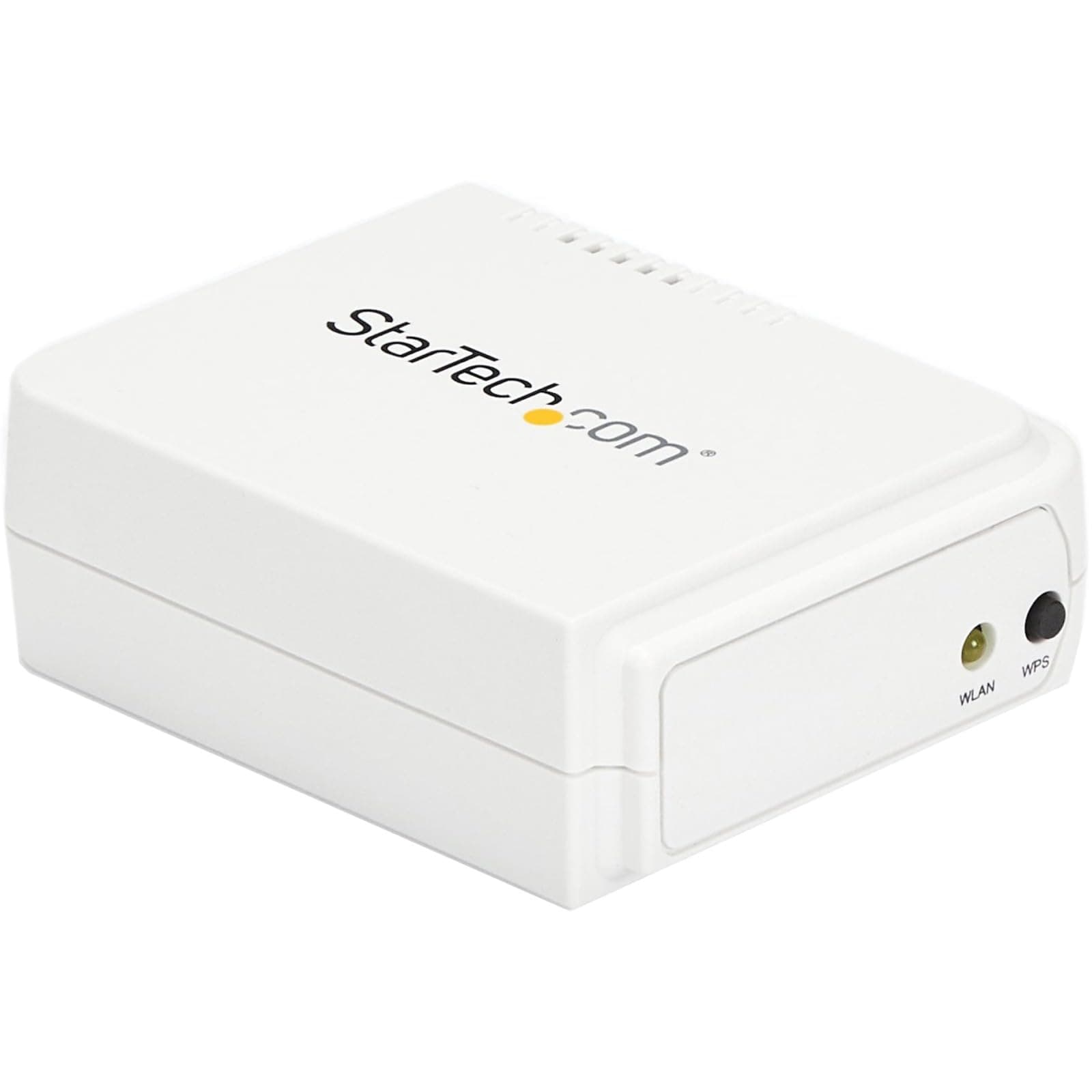

🖨️ Connect, Share, Print — Stay Ahead in the Networked Office Game!
The StarTech.com PM1115UW is a compact wireless N USB 2.0 print server that enables multiple users to share a USB printer over WiFi (802.11b/g/n) or wired Ethernet (10/100 Mbps). Compatible with Windows and Mac, it supports SNMP for remote management and comes with a 2-year warranty plus lifetime 24/5 technical support. Designed for small offices and home environments, it offers flexible connectivity options but requires a hands-on setup approach favored by IT professionals.


| ASIN | B00M77UME8 |
| Best Sellers Rank | #1 in Computer Networking Print Servers |
| Brand | StarTech.com |
| Built-In Media | 1xPower Adapter,1xSoftware CD,1xQuick Install Guide |
| Color | White |
| Compatible Devices | Desktop |
| Compatible Operating System Family | Windows |
| Customer Reviews | 3.2 out of 5 stars 564 Reviews |
| Data Link Protocol | IEEE 802.3 |
| Data Transfer Rate | 0.15 Gigabits Per Second |
| External Testing Certification | CE, FCC |
| Global Trade Identification Number | 00065030855167 |
| Hardware Interface | Ethernet, USB |
| Item Dimensions L x W x H | 2.8"L x 2.3"W x 1"H |
| Item Type Name | Wireless Print Server |
| Item Weight | 0.11 Pounds |
| Manufacturer | StarTech.com |
| Mfr Part Number | PM1115UW |
| Model Number | PM1115UW |
| Product Dimensions | 2.8"L x 2.3"W x 1"H |
| UPC | 065030855167 650308551676 |
| Unit Count | 1.0 Count |
| Warranty Description | 2 Year |
L**.
GREAT Device! GOOD Support, just NOT very plug and play!
The most important thing to know is that StarTech is a good company, based in Ontario, Canada. And, if you're having trouble, if you call StarTech they can remote into your computer and help you with setup. Knowing that this was a good company based in Canada, I decided to give this a shot. I saw someone had returned it to Amazon, and I was pretty sure that that was because it was too difficult for them to set up. As it turned out, It was pretty difficult to set this up, and it is definitely NOT plug and play! I tried their software method to set this up, and that did not work to fully set up the device. Their software was also only seeing this device if it was connected to the computer via Ethernet. Another thing I ran into is because this was a used product, I had to hit the tiny reset button (with a paperclip in a tiny hole) on the side of the device that says "reset" next to it. The black button on the back of the device is actually for WPS setup, which I have not tried and I don't know if that would work or not, but that button on the back is NOT the reset button! So for me, I had to connect the device directly to the laptop with an Ethernet cable and set it up initially with the wired cable. Set up absolutely would not work using WIFI. I had to set the Ethernet settings to 192.168.1.50 and access the GUI interface at 192.168.1.10 . For me that was the only way to get this thing going, so I had to set up the device in the GUI interface. StarTech support was very helpful in showing me how to configure that. After the device is properly set up in the GUI then you have to manually configure a new printer driver for the printer in Windows to work specifically with this device and you have to follow the instructions in the StarTech manual. I'm using Windows 11 Dell laptops and a Brother HL-L2320D laser printer. It's a good device and they have very good phone support. it's just not a plug-in play device! This was a struggle. At one point, I broke the regular driver so I couldn't plug the printer directly into my laptop with the USB cable, but I ended up fixing that and I ended up fixing this device so it works great now. One of the problems was in the GUI. You have to stay on the tab that you're setting up. You can't go from tab to tab and then hit save. You have to save the settings in the tab that you're currently in, or you lose all the settings you just put in there! So, It was a real struggle, but the support was great and the device is clearly a stable and good device. It's just very difficult to set up! The other interesting thing was I set this to a static address of 192.168.1.200 and I can now reach the GUI at that address, however, for some reason if I log onto my router and look for this device as a connected client, it is completely missing from my router. I cannot find it displayed there as a client, yet it is working perfectly! I recommend the device! So I hope this helps someone!
A**A
Welcome to the 90's!
Welcome to 1998. - Very poor functionality. - Dated 20 year old interface that makes set-up a slog. - Likely same internal hardware since the 1990's. - WiFi Configuration takes you back in time - to a place you don't want to return to. - Configuring without a Windows machine is a nightmare. - Will it even work with Windows 11? (I don't know, I gave up on Windows when Vista came out). - Be sure to reset with the reset button when you return it. If you set-up print servers in the 1990's, this will be familiar and as needlessly frustrating as it was back then. Setting up requires a lot of unnecessary steps and configuration via their archaic 1990's interface. Oh and not to mention multiple device restarts along the way. In my case, the wireless connection would not work no matter what I tried. After spending 1.5 hours trying to convince it to work, I decided enough was enough. StarTech - I know this device in one form or another has been a contributor to your bottom line for a long, long time. At some point refusing to modernize and update your hardware will impact your sales.
R**M
Works well, but requires expert installation
I purchased this because it is the only compact, affordable print server I could find. I wanted to be able to use my old HP LaserJet 1320 printer on the other side of my home office from my Windows 10 PC, without running a long cable around the room. This unit does the trick! WARNING: installing this is not an easy task and not for the non-expert. I am a trained network tech (CompTIA Net+), so I got to work. Other reviewers panned the included software, but it worked for me, and said the book was useless, but it has some good information. I started by reading everything I could find: reviews, book, online FAQs, etc. I then took the precaution of documenting all the settings in my router, so I could easily get back if needed. The key is to understand that nothing on the network will communicate unless its IP address is in the same range as the router, and the subnet mask is the same. For me, the router IP is 192.168.50.1, subnet 255.255.255.0, while the print server comes setup with IP 192.168.0.10, subnet 255.255.255.0. One reviewer said the setup was easy, but probably had a router IP of 192.168.0.1. The instructions suggest connecting a PC directly to the server to change the server setups, but I used a different technique: I changed my router IP to 192.168.0.1 so it could communicate with the server! After doing that there was good wireless connectivity and I could access the web setups for the server from my PC browser by entering 192.168.0.10. I found the server was already setup for infrastructure mode (contrary to some documentation), which is needed for a router-based home network. It was also setup for a fixed IP address, which I found necessary. From my PC I changed the fixed IP to 192.168.50.100, which fit better into my network structure, then instructed my router to reserve that address for the server. While setting up the server, I also added a password. (Of course, I put my router IP back to the original address, so it could talk with the reconfigured server.) Along the way I used "ping" to verify that the server was accessible from the router and the PC. At this point I tried setting up a printer port using instructions I had, but could not get the server driver to install from the supplied disk. Instead I put in the software disk and followed the prompts for a complete installation. It installed on my PC OK, and it was relatively easy from there to complete the installation and print a test page. One advantage I had was the printer being installed had already been used on my PC, so the correct printer driver was already installed. My suggestion would be to first get the printer working while wired to the PC, prior to trying to use it with the server. Bottom line here is this is not a novice installation. If you don't have some networking experience or don't want to try working with tech support, you should look at another solution, such as purchasing a wifi-enabled printer. I am giving this a 4-star rating since I needed and like this solution.
M**C
It works!
Ok, so I really wanted this product to work, I moved my PC to my family room and wanted to still be able to print to my Brother 2240D lazer printer. Got the product today, I can see that this was used previously (power supply cord was loose (no wire wrap around it), the CD Rom plastic tape was disturbed (can plainly see it), but I decided to give it a shot. Pitfall #1" The default IP for the device is 192.168.0.10 When I cabled it to my PC, I was not able to access it through the web browser till. Had to change my Eithernet TCP/IP4 setting from auto detect to a static address of: 192.168.1.50 (50 could be any number except 10) Subnet of: 255.255.255.0 Once that was done All I had to do was follow these directions: https://sgcdn.startech.com/005329/media/sets/pm1115uw-setup-guide/pm1115uw%20setup%20guide.pdf I used the "Manual" method as the software on the CD did not load the setup wizard! Just as well. You might need help from your IP provider as to the SSID (name of the 2.4G signal), this server only operates on the 2. G frequency. But you might already have that if you are using your laptop/desktop or iPad over wireless, you can look and see what you are able to use, typically you can choose between 2.4 or 5G and each has a name (that's the SSID) So, what needs to be done once you get access to the server box is that you need change the IP address to what you network is. Example, my network is 192.168.1.1, the box default is 192.168.0.10, notice the second digit from the right side, 1 and 0 respectively, they don't match but they have to! So you have to change the server box to 192.168.1.xx (xx can be something like 60, which is what I used), the subnet is still 255.255.255.0 Save/Rest and move on to the rest of the setup, although you may need to contact you IP support to get" Caution: once its reset to the new IP, you will need to go back into your Ethernet settings for TCP/IP4 and change that to 192.168.1.50 (notice the 1) Default Router number (this I absolutely needed to get from my IP) Authentication type You should already have the Password for your wireless network (that's the Security Key) Its not plug and play but its also not too complicated but you kind of need to be a bit of a "NERD" to get this done. The startech.com has a support and contact page, I remote chatted with a nice fellow that gave me the basics but I'm have no doubt that they will walk you through it. Its working well so far and hopefully will continue to do so for a long time. I learned a lot myself and if I ever change IPs, I will know what needs to be done to accommodate the print server. Its disappointing that I was not able to connect to the server box instantly after hooking up a cable to my PC, my PC should have automatically detected the IP address of the box and connected to it but I'm not a Network expert so I don't know where the fault lies for that (PC or the server box firmware) it was set to auto detect by default. But all is well, took about an hour to get it going. Bottom line, don't be afraid, the Server does work, requires a bit of knowledge but as long as you have access to your IP support and you do have chat to Startech (and phone number as well) you should be able to work through it! It was set to auto detect by default
M**Q
Incredibly Hard to Install
UPDATE: I recently wrote a 1 Star review where I noted that after several frustrating hours of trying to install this Startech Print Server (SPS), I finally gave up. However, while waiting for a return authorization, I started researching comparable units from other companies and quickly discovered that they are apparently all hard to install and many have other issues that make them less desirable than the Startech. So, I decided to try the install again, and this time I finally succeeded. The hardest part of my install was getting the SPS to connect wirelessly to my router. I will cut to the chase and tell you that the easy way to do this is to push the WPS (Wi-Fi Protected Setup) button on your router, then push the small black WPS button on the front of the SPS, wait a few minutes while the lights blink and “VOILA!!!” your SPS will be wirelessly connected to your network router. This simple procedure, which isn’t mentioned anywhere in the Startech instruction manual or on their support website, could have saved me hours of frustration trying to make this connection with both the supplied software and the instructions on the Startech support website. I discovered it purely by accident. Hopefully, your router has a WPS button (most modern routers do) and this will work for you. If not, please know that the installation manual and software provided with the SPS unit are beyond useless. I wouldn’t even bother installing the software, it is a waste of time and disk space. In fact, by searching the Startech support website, I learned that some of the information in the paper manual, such as the reset procedure, is WRONG. If you don’t have a WPS button on your router, my best advice is to go to the Startech website, click on the “support” tab and go to the support page for model PM1115UW. Scroll down to the FAQ section and follow the instructions for your computer operating system. Good luck! You can confirm that the SPS is wirelessly connected to your router by “pinging” the SPS from your computer. To “ping” the SPS, press the “Windows key + R”. this will bring up a black and white command box. Type cmd and press Enter. Then type ping followed by one space and the IP address listed on the bottom of your SPS. For example, type ping 198.162.0.10. If the ping is successful, you should get a response from the same IP number that you entered. If you get a response from any other IP you are NOT communicating with the SPS. In my case, I initially could successfully ping the SPS if it was hard wired to my computer with an Ethernet cable, but not wirelessly. However, after the WPS procedure, I could successfully ping the SPS wirelessly. Once the SPS is wirelessly connected to your router (ping is successful), the final step is to install the printer on your computer. This process is also a bit involved. There are instructions on the Startech support website, but they are not easy to find, so I will repeat them for you here. 1. Press the “Windows” key and select “Settings” (the gear-like icon on the lower left of your screen). 2. Click “Devices>Printers and Scanners>Add a Printer”. 3. Windows will now search for available printers but won’t find your SPS. 4. Click “The printer I want isn’t listed” after it appears. 5. Select “Add a local printer or network printer with manual settings” > Next. 6. Select “Create a new port” and change the “Type of port” to a “Standard TCP/IP Port” > Next. 7. In the “Hostname or IP address” box, type in the IP address of the SPS (it is on the bottom of the unit, the default IP is 198.162.0.10) > Next. 8. Click “Custom>Settings>LPR”. Under “LPR Settings” enter a “Queue Name”. This is whatever name you want to identify the printer connected to your SPS, and it can be any set of letters and/or numbers. It is the name that will later appear in your list of available printers. Click “OK” > Next. 9. Select the best available driver for the printer connected to your SPS. You may need to click the Windows refresh to get a more complete list of printers (it takes several minutes to do the refresh). If you can’t find your exact printer, choose the closest available match. 10. Keep clicking Next until you are asked to send a test page to the printer to confirm that the printer was successfully added. Hopefully, that page will print, and from then on, your printer will show up on your computer in the list of available printers. You will probably need to repeat this “add a printer” process once on each computer that you want to access the SPS. I truly hope that this help others avoid the issues I had installing the Startech Print server. You might also be able to get help from the tech support people at Startech, but they were closed while I was going through all of this, so I can’t speak to how helpful they might be. I have now raised my rating to 2 Stars because, once installed, the SPS is working fine. However, the install was far more painful than it needed to be. Original Review I seldom write reviews, but I need to add to the warnings of others about this product. I should have heeded the warnings already posted by others. The installation of this print server is an absolute nightmare. I am not a tech genius, but I have successfully built my own computers and troubleshot computers for years, and I can normally solve a computer problem without too much hassle. But, after wasting several hours trying to get this unit to connect to my laptop or to my network it completely stopped showing up at all, and I just gave up and will hopefully send it back. Looking more closely at other reviews, including one by an experience network tech warning about a very difficult install, I should have heeded those warnings. The manual and installer software are totally useless and the unit seems to be incompatible with many modern routers, apparently including my century link router. I would strongly encourage you to look elsewhere for a better solution. I am awaiting a response from the seller about returning this useless POS.
E**N
works but difficult to install and relatively poor documentation
I just finished getting this wireless print server installed last night and now that it is working everything is fine. However, getting it to work was quite difficult. I have over 20 years of IT experience and would consider myself to have fairly advanced abilities when it comes to troubleshooting these type of issues. This is not a product for the average home or small office user. Here are some things that I encountered: 1. None of my home computers running Windows 10 could connect to the print server's wireless network for the initial configuration and so I finally had to connect directly to the print server with a network cable. 2. I had to manually configure a static IP address for the network card in my Windows 10 laptop before I could connect to the print server for initial configuration. 3. The management software that comes with the print server is worthless so don't bother even installing it. Just navigate to the IP address of the print server in your web browser and use that interface to configure the print server. 4. The print server will not detect all types of wireless networks. I have two different wireless networks in my house and it only detected one of them. Fortunately this was good enough for me. 5. There is absolutely no documentation for how to connect the print server to your existing wireless network. So you might have some trial and error before you get this right. You might have to reset to factory defaults a few times. Once I got the print server connected to my wireless network and working, I was able to connect to it relatively easily from all of the Windows 10 and Mac computers in my home. Summary: once it is working, everything is just fine. However, the installation and configuration was quite challenging and time consuming.
M**N
Doesn't work with mobile devices, hard to setup
This product will not work with tablets or phones iOS or Android. It works only with mentioned O.S like windows etc. Therefore of no use to me. Would have been great if it worked as mostly people now use mobile devices and do not own or use laptops/desktops for everyday activities. Setup took me few hours to figure out. The local ip ranges in my router were something 10.0.x.x instead of 192.168.x.x and it didn't work with infrastructure installation. I had to find installation software on their website as laptops don't have cd roms these days and provided cd is useless. After finding my router network ip ranges I provided correct new IP during install and finally it worked. Note that I was able to print using Android phone after installing print share app which costs 9 bucks. So there is solution but little more to pay. Hope they fix the documentation and add support for mobile devices.
C**A
IT'S NOT THAT DIFFICULT TO USE / INSTALL! Use WPS!
I never write reviews, but felt compelled to share my experience with this print server. I read all the reviews about how difficult it was to use this one or just about any print server. I'm so very GLAD that I took my chances with this one. It has such a compact design and is SO easy to install. I used the WPS button on my router to install the device on my network and then used my browser to go to IP 198.162.0.10 to change the print server to DHCP! (I'm particular and like to always use DHCP.) Voila! Worked in under 5 min. I can't comment on the software provided on CD from the manufacturer since I didn't use it, but the print server interface when using IP 192.168.0.10 through your browser is easy to use to configure settings. It's just like a router configuration interface. The provided written instructions didn't go through using the WPS button, but I tried it since there was a button for it on the device (see pictures.) I did have to manually install a printer in Windows and point my system to the print server's IP to install my printer. My system did not detect it automatically in Win 10. If you are not familiar with creating a printer port using an IP and installing your printer to that port, you may find this part a little difficult. It's possible that with a newer printer you may not need to do that. I am using a Brother HL-2230 printer which doesn't auto detect in Windows. I also need to comment that I had no conflicts with the IP 192.168.0.10 prior to installation. On my router, DHCP re-assigned the print server to the same IP 198.162.0.10. It's working great on my network with multiple computers using it. Have had NO problems with it so far!