🚀 Elevate your connection game—because buffering is so last decade!
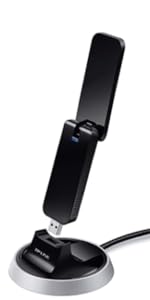
The TP-Link Nano USB WiFi Dongle TL-WN722N delivers reliable 150 Mbps wireless speeds with a high-gain antenna for extended range and stable connections. Compatible across Windows, Mac, and Linux platforms, it features easy plug-and-play setup with USB 2.0 and secure one-touch WPS encryption. Backed by a 2-year warranty and 24/7 support, this compact adapter transforms desktops and laptops into powerful WiFi hubs, perfect for streaming, gaming, and remote work.


| ASIN | B002SZEOLG |
| Best Sellers Rank | #256 in USB Computer Network Adapters |
| Brand | TP-Link |
| Built-In Media | Package Contents Wireless AdapterOne USB extension cableResource CDQuick Installation Guide |
| Color | White |
| Compatible Devices | Desktop, Laptop |
| Compatible Operating System Family | Linux, Windows |
| Customer Reviews | 4.3 out of 5 stars 20,996 Reviews |
| Data Link Protocol | IEEE 802.11b , IEEE 802.11g, IEEE 802.11n , USB |
| Data Transfer Rate | 150 Megabits Per Second |
| External Testing Certification | CE, FCC |
| Global Trade Identification Number | 06935364090456 |
| Hardware Interface | USB 2.0 |
| Item Dimensions L x W x H | 3.7"L x 1.02"W x 0.43"H |
| Item Part Number | TL-WN722N |
| Item Weight | 6.38 ounces |
| Manufacturer | TP-Link IP Cams |
| Mfr Part Number | TL-WN722N |
| Model Number | TL-WN722N |
| Product Dimensions | 3.7"L x 1.02"W x 0.43"H |
| UPC | 845973050467 |
| Warranty Description | 2-year warranty |
A**A
Another good TP-Link product
I get this as my third network related TP-Link product, I get first a "TP-LINK TL-WR1043ND Ultimate Wireless N Gigabit Router" (Sorry the new form of amazon to write reviews byte me and I was unable to put the proper link). So this USB Adapter connects easily with the router all the indicators of connectivity are better than good across all my apartment, is an small 3 rooms place but everywhere the signal is strong. I get this to give wireless connectivity to my desktop computer and to this time (about a week) there is no complains about, just works as expected. This comes with an USB extension cable of 1 meter (40") that is enough to take the adapter outside of the back part of the computer to place in better position to take advantage of it high gain antenna. I'm using it on a windows 7 x64 machine, the installation was simple, you need to cancel the auto detect by windows and then use the driver disk that comes with the adapter, in my case I was unable to cancel the auto detect but It was simple to delete the new hardware found and the I use the driver CD. The driver CD will install a software that will auto-start with windows any time but will keep you informed about the quality of the connection and signal. The bottom side of the adapter has a hole that you can use to hang the adapter from a upper side and increase the quality of the signal, this was a really good surprise because allows to place the device in a variety of places in order to improve the connection quality if is needed. The High gain antenna that have the USB adapter is longer than the adapter itself, have great range of movement, you can rotate it 360° on its axis and max 90° of movement the side. Also you can detach the antenna that comes with the USB Adapter to put other bigger antenna, just in case you need that. Overall is a great Wi Fi Adapter, the speed provided is good enough for a home network, so I'm really happy with the TP-Link brand because this is the second piece of hardware I get from them that is cheap, but well done and works as expected.
B**S
Easy to install and works great Windows 7 SP1 32-bit
The TL-WN722N works great under Windows 7 SP1 32-bit for me. Haven't tried it on another OS so far but plenty of other reviewers have. I've dealt with other USB wireless devices in the past on Linux, Windows XP and Vista for years, so I know they don't always play nicely, however in this case no problems. The item came well packaged and seems pretty sturdily built, though I don't plan to drag it around with a laptop, this will just be attached to my desktop via the USB extension cable to get better signal. If you are connected to the internet by other means already, don't bother with the driver CD, just plug in the USB and let Windows install the drivers automatically via Windows Update. Literally 5 minutes for the whole install - opening the package, plug in the USB stick, Windows found and installed the drivers, connected to my wifi (WPA2 on Apple Airport) I unplugged the wired LAN and I was online over wifi, no worries. With the usb extension cable and the item velcro'd to the top of my computer tower I'm picking up access points from a block away that I can't see on any of my laptops, and the network speed to my router easily maxes out my 30mbit internet connection. Downloaded a couple of 600MB ISOs and the connection held smooth, fast and stable. Streaming Netflix also comes in high quality with no glitches, so for qualitative purposes things seem pretty stable as those are usually the sort of things where I see cheaper adapters start to flake. Note - I'm connecting to an Apple Airport router from my Windows 7 machine, which works fine, as expected. I've tested plugging and unplugging the USB a few times while the machine was on, and so far things reconnect fine. Also put the machine to sleep a couple of times and it wakes up properly and reconnects to the wifi, so at this point things I am happy.
B**N
it's been working great now. If you have problems with your Computer ...
I purchased the TP-LINK TL-WN722N a week ago and although it gave me quite a headache trying to fix it, it's been working great now. If you have problems with your Computer restarting after TP-LINK TL-WN722N out of your USB PORT, read below. The packaging itself is good, and you don't have to worry about receiving it damaged.Comes with the mini-CD with drivers, instructions, and the USB itself, along with the antenna.The antenna is easily attachable, requiring you to spin it until you can't anymore. I have Windows 7 home premium 64 bit and used the CD driver to install just the driver(no utility).Worked great, had a strong signal, consistent speed. Now when I decided to unplug it from the USB port, the computer would restart/Blue Screen.So I thought maybe it was some previous driver from a different TP Link USB device I had installed. So I went ahead and did a clean install of Windows 7, choosing install and download all Windows updates, OOPS(more on that later!)! So I went ahead and installed the drivers and eventually the TP-Link Driver. I pulled it out and it didn't restart and I thought I fixed it, so I went ahead an download all the optional and important Windows update. After the computer restarted, there was a black screen so I pulled out the TP-LINK TL-WN722N, and so my computer restarted.So I thought maybe it was the CD Driver, so I uninstalled it and tried the other drivers from the TP-Link website but none of those helped. I went through the Clean Install again, except this time, during windows 7 installation, I chose the Install Important Updates only option.Went through installing the drivers, TP-Link Driver from mini-CD, and then Windows 7 updates. Only this time, only chose to install the Important Updates, none of the Optional ones.That seem to have fixed the problem! All in all, I like the TP-LINK TL-WN722N as it has great signal and speed.If you have any trouble with the drivers, try to avoid installing the Windows Optional Updates, that may help.
T**F
This little thing is awesome!
---------------------------------------------------------- UPDATED: August 21, 2013 (Update section below) ---------------------------------------------------------- Installed January 14, 2011 and still excellent. Here's my take on the TP-Link TL-WN722N Wireless USB Adapter: ------------- POSITIVES: ------------- ** It really, really works like mad. ** I get constant download speeds of 12Mbps+, which is close the the max of my internet bandwidth. - It's very cheap cost-wise for the great performance it gives you - It's small(ish), though it will look big connected to your laptop - Comes with a 3' USB extension cable which I definitely recommend using. It helps position the device, and keeps it from crowding your laptop or from being destroyed by being knocked out of your PC's front USB port. - Has a diffused green LED under the white plastic to let you know it's working, instead of the blinding blue LEDs that everyone uses these days. The light turns off when it's not powered (like when you hit Standby on your PC). NOTE: It's still annoying in a dark room when I'm trying to sleep, but a few post-it notes helps that. - The software is relatively simple to install and use, and allows you to use other products to manage your WiFi instead. - The current driver, software, and documents come on a mini CD and are all up to date with what's available on TP-Link's web site - The documentation is good, but it could use some more detail. ---------------------- MINOR NEGATIVES: ---------------------- - The TP-LINK Wireless Client Utility is functional but could be more intuitive. A configuration "wizard" would be a good improvement for manual configs. (It has been updated as of Jan 5, 2012 - see below) - Manual configuration (which you need if your network is securely hidden and requires a pass code) isn't well-documented, though you will be able to get it to work with the document, and maybe a little trial and error. If your setup is totally open security-wise (this would be BAD), you will have no problem with the software. - Even if the driver is installed incorrectly, the client utility may report enough information to make you think it is installed. When in doubt, do a complete removal of the software and drivers and re-install. - The QSS software that comes with the device is ONLY usable with other TP-Link products. Don't bother installing it unless you have a TP-Link Router/Access Point that has QSS built in. (As of the client update on Jan. 5, 2012, it appears to be installed automatically) ------------------------ UPDATED 08-21-2013 ------------------------ Nothing new to add! This thing still rocks. No news is good new, right? Thank you everyone who chose to mark my review helpful! ------------------------ UPDATED 01-23-2012 ------------------------ - I've kept track, and this device has worked well even with interference from Coronal Mass Ejections from the sun (sunspot activity), though I have noticed that the performance decreases (could be other things along that long internet path, as well). - I now have a TP-Link TL-WA901ND 2.0 Access Point, which this device works well with. Unfortunately is does NOT connect at the advertised "150Mbps" potential speed when it's configured to do so, but I never really expected it to. My max internet connection of 13Mbps is far below that high rating, anyway. - The latest WiFi utility for this device is up on TP-Link's web site as of Jan. 5, 2012, and I'm a bit disappointed with it. On the plus side, it is probably simpler to use - which is a good thing for most users, but it's been dumbed down to remove all of the extra connection info power users like me appreciate. The message windows are also annoying and the English grammar is sometimes embarrassingly wrong. It also looks a bit cheesy compared to the previous utility version. At least it works well. - It is difficult to tell if the actual hardware drivers have been updated, because software info on the page for this device is really incomplete. It looks like they are not updated since I originally posted this review. - I still benefit from disconnecting and reconnecting the device once in a great while, but the problem that causes the lowered performance could be my PC, the access point, or electromagnetic interference. Hard to say. - To date, 4 people were helpless in the face of my review - maybe it put them to sleep. Thanks very much to everyone who took the time to click "Yes". ----------------------------- My installation experience ----------------------------- A friend of mine needed a WiFi adapter since she moved to a location that wasn't wired, so I recommended this to her based on the great reviews it's received. She successfully and easily installed this device on her work laptop, and was extremely impressed with it's ability to drag a much better signal out of the almost inaccessible 802.11n WiFi router located down stairs, the signal of which is blocked by many walls and turns. She also needed to install the device on her personal PC. Unfortunately we spent hours over chat trying to get it installed and working, and FINALLY got it done after completely removing the software and drivers that she had installed, and then reinstalling those drivers with my guidance. It was only at this point that she said, "Oh yeah, I kind of passed over that part" where XP asks for confirmation to install an unsigned driver. AHHHHHHH! Well, now it works. :) The signal is not fantastic, but it's 4 times better than it used to be (for her laptop) and is good enough for her PC. It definitely works. So one lesson for you is: Please do yourself a favor, and let your operating system install the driver properly. ;) The night I helped my friend with her WiFi, I received and installed my own TL-WN722N adapter, to help her through the install process and to replace the D-Link 4300 router I was using as a WiFi receiver (firmware v1.8 has bridging). After installing this little thing and adjusting the antenna, I got download speeds almost twice as fast as before to the aging Linksys 802.11b-only wifi router downstairs. I then spent some time replacing that Linksys device with the D-Link 4300, turned on Super-G, and got almost 13Mbit down and 1.7Mbit up, which is more than four times what I was getting before on download and upload. The download speed varies between 8Mb-12Mb - it probably hits 12mb because of Super-G infringing on other people's signal space :P - but the upload speed has been really constant at 1.7Mb or so since I installed it, even to the Linksys router. The download speed is almost as good as I can get by plugging in a 75' network cable directly to the router. So this little thing really rocks! FYI, DSL Reports has an excellent set of speed reporting tools, as well as info on increasing network equipment and WiFi performance. Check it out! I'd enter a link, but Amazon would probably only delete it. That's it, another novel for my reviews. I'll update this over time if anything new happens...
P**R
Simple, Fast, Seamless
Why I chose this rating: This wireless adapter has brought me great success over the past few years. I have purchased at least 4 of these adapters for various computers. They have all worked perfectly! Why I like this product: I like that it gives you the option of plugging it directly into the USB port on your computer, or using the USB extender so that you can place the adapter wherever you choose. I like that this adapter has a antenna for better wireless signal. I'm an electrical engineer, so trust me when I say that the antenna makes a big difference in signal strength. I get 4-5 bars of signal at any point in the house, and it is an encrypted connection. That is exactly what someone should look for in a wireless adapter. The included CD comes with drivers for operation. I would recommend going to their website and downloading the most recent driver for this adapter to ensure best performance. The packaging was simple and effective. What could be improved upon: I tend to misplace the USB cap for this device. Maybe a more attached option would help people keep track of this little cap. That's about it! Bottom Line: This is a very inexpensive solution for wireless internet access. It works perfectly, and was well designed. Buy this adapter!
C**0
Holy crap. I finally got it working after a few ...
##I am aware that my review is a bit confusing, since I am covering my experience in using this in several renditions of Kali, including but not limited to... (a) Kali VM in Virtualbox (b) Kali hard drive install (c) Kali Nethunter 3.0 on a rooted tablet. In a short while, I am going to edit this review, once I think my new revision is more appropriate for my liking. I just realized, that I probably should assume that our readers understand how to use Kali and Linux, and that the guides I was typing below (on enabling and using Monitor Mode) is completely unnecessary. Meanwhile, I will assure you, that as soon as you ditch using Virtual Machine versions of Kali, a lot of your device recognition issues will be gone. ## UPDATE (9/13/16): This adapter does work with NetHunter Kali (the mobile tablet version of Kali). I connected it with my fancy new toy (a rooted Nexus 7 tablet with Nethunter installed), and after about a week of fumbling with the settings and raging I finally got it to work. Note, that it is MANDATORY that you need a OTG USB Y-Adapter Cable (OTG = On-The-Go), OR, you can buy a POWERED OTG hub from Amazon. I have tried going to Fry's, and aside from the ordinary unpowered OTG cables, they got nothing else. You might also need a double-sided male-to-male USB 2.0 cable if you are going for the BadUSB MITM attacks as well. The reason why you need more specific cables and connectors is that there is a combination of power issues in being able to keep this adapter running off the Nexus 7 tablet. Power issue #1, Lollipop Android's lousy power-management settings, where it would cut the power on your adapter before it is allowed to operate normally (you can look at your "dmesg" logs to confirm). Power issue #2, the Nexus 7's hardware doesn't really provide enough juice through the cables to have the TP-Link adapter running reliably. It might turn on and off again unexpectedly if you are running something like Airmon, Aireplay, or Mana Wireless Toolkit for example. UPDATE (8/27/16): Disregard what I said previously. As it turns out it's not a 100% certain fix for recognition issues through VirtualBox --> Kali VM. It MAY help. But after rebooting a few times and attempting to reenact my same steps it failed to recognize the dongle properly again. Out of frustration and keyboard breaking RAAAAGE, I decided to say, "f--- it", and went ahead and installed a full copy of Kali onto a 20GB partition I made in my hard drive. Surprisingly, the newest distro version completely recognizes the TP-Link, and confirms that this wi-fi dongle... (1) WILL WORK (2) WILL ARP INJECT(one of many methods) and in the event of any recognition issues (3) CAN BE FIXED THROUGH TERMINAL. The Kali distro you are looking for should be "32/64 bit Version 2016.1". So far that's the only trouble-free iso I have seen since I been playing with Kali in two years. A previous version I tried installing before (late 2015) had major errors in it's directories (a dozen or so mislabeled folders), despite multiple installation attempts, disk images redownloaded and checksums against the hash. I also played with "Katoolin" in Ubuntu (really bad idea), tried to create a Persistent Live USB version of Kali from Windows (not so bad of a idea), and loaded Kali within VirtualBox (mostly a waste of time, aside from having a safe environment to analyze shady looking files). I have tried every alternative before resorting to attempting to install Kali again on my hard disk. I recommend just dumping that VBox workaround that people are frustrating themselves over, and as long as they have experience, or friends, in installing Linux, just go ahead and get your machine ready for a legitimate install (even the Kali GUI installer is not particularly informative and leaves out a ton of important details, make sure you know how to do your byte-to-gigabyte math and which "sda" "sdb" or partition properly represents where you WANT to install). You will not be able to create a "Kali Persistent Live USB" WITHOUT a working Linux distro installed on your hard disk, and third party solutions vary in mileage and tech support (and even English apparently). So let's not like, frustrate you any further. Before I depart, I want to notify you of a few things you definitely need to know before playing around with Kali + Wifi Dongle. Memorize these terminal commands in this order... so you can troubleshoot any issues quickly without having to wander around the internet aimlessly looking for answers. (a) "ifconfig", lists all of your network interfaces. Your main Wi-Fi card and this TP-Link should show up as "wlan0 or wlan1" or something like that. The dongle will not have a LAN IP address. Thats the one you are going to set in monitor mode. (b) "airmon-ng start <wlan0 OR wlan1 OR whatever>.". Begins "monitor mode" for your network card. You want to include whatever wlan number your "ifconfig" command said was TP-Link (it should be in the list as Atheros) (c) "airodump-ng <wlan0 OR wlan1 OR whatever>". This lists all of the available routers/devices in range of your TP-Link, available to attack. For beginners, I suggest something like one of YOUR OWN machines in your LOCAL network. Or you know, your neighbor's poorly configured WEP router. I didn't tell you that last one, I'm not responsible if you get beaten up over this. And besides, I barely got started, and have not learned a thing yet about stealthy use of pentest tools. (d) "airmon-ng check kill" AND "service network-manager start". This is your "Oh S---" button. In the event that you fail in a Wi-Fi attack, lose your session, and you need to immediately restart your process, the first one disables monitoring mode, the second command restores functionality to your TP-Link (the light will come back on, you might get internet access back in Kali). Repeat steps (a) to (c) again. (e) "fern-wifi-cracker". It's a GUI version of several Wi-Fi cracking tools combined together. I didn't really like this, but it did help for starters in letting me understand how all of Kali's WEP/WPA cracking works. It's sort of like Armitage but for aircrack-ng, aireplay-ng, airodump-ng and airmon-ng. It's not very detailed in describing what's going on in the background. I often had to run Wireshark alongside of it so I can observe if my laptop is doing anything. Ultimately it's better to understand the command line, so you can understand a more detailed readout of what's going on. You can then customize your attacks to make it more successful, and open more options than what a GUI would offer. It pretty much applies to everything in Linux (setting LOCALHOST ports and customized PAYLOADS in Metasploit Framework for example). Finding credible documentation and guides for Kali is incredibly hard without professional and academic help (most Ubuntu guides work though, a few changes needed). Try looking at all of those downvoted YouTube videos posted by dumb teens, with terrible music in the background. After I graduate with my Accounting degree, I plan on reenrolling back to a local community college for the CHFI Program (Computer Hacking Forensic Investigator), to better round out my KSAs in spite of my criminal record. But for now, a good YouTube source is this guy named "Ed Walsh" on YouTube. He sounds like a real Revenge of the Nerds Casting Call Fellow, but this guy is awesome. OLD POST (8/25/16): Holy crap. I finally got it working after a few days. This is Kali Linux on VirtualBox VM, Version 5.4.1, with the extension pack installed on a Windows 10 system. It's finally detected in the distro, and even Fern Wifi Cracker works with it. But since I do not know which one of my Googled fixes actually did it, i'll list them all for you. 1. Deleted the UpperFilters registry key using RegEdit (follow this guide: [...]) 2. Reenabled USB 3.0 support instead of the 2.0 that everyone was suggesting in the VirtualBox USB Settings (requires installation of the extension pack) 3. Deleted the USBPCAP File from Windows Add/Remove Programs, that was added by the WireShark Windows installation. Apparently it causes problems with the USB support for VBox. So better get used to running WireShark with Kali. 4. Manually installed the "Windows 10 Drivers" FIRST before doing anything to the guest machine. It's actually Windows 8.1 drivers. Go into your TP-Link installation disc that came with the package, go to this directory, "E:\TL-WN721N TL-WN722N\Driver Files\Windows 8.1 64bit", highlight everything and drag it into this directory, "C:\Windows\System32\drivers". Then go to this directory to run the setup file, "E:\TL-WN721N TL-WN722N". If you still have problems, right-click Setup.Exe, Properties, Compatibility Tab, and check the checkbox and select in the Drop-Down, "Windows XP Service Pack 3" as your compatibility mode. (If the installation bar in the installer froze at any point, you dropped the driver files into the wrong directory, so backtrack and try again). 5. Finally, you have to ensure that the Kali VM can detect and install it's own Wifi-Dongle drivers on IT'S OWN. So follow this video down to the letter. Make sure you kept your dongle INSIDE the USB port as you are creating your USB filter, but RIGHT BEFORE you boot up the Kali VM, you disconnect the USB through the Safely Remove Hardware AND manually remove the dongle out of the port. 6. Don't forget to select USB 3.0 for your USB filter if your dongle is plugged into a 3.0 port. That was the final thing I did out of frustration before it finally got detected (tiny red blinky light on the USB icon = good, never seen a green blinky light but it still works). I was pretty close to breaking my keyboard with RAGE, but I think I covered everything.
B**A
Impressive at Any Price
I bought this mostly because I needed something that was backwards compatible with an old standard, 802.11b. My old wireless router works great so why should I change? Some other wireless adapters didn't work but this one locks right on. The external antenna really pulls in the signal. I'm using this to send video to a dedicated computer attached to my HDTV TV and needed the extra range. The only problem encountered was with the initial installation. The book tells you to run this program called QSS. Well don't, that is, unless your router has a QSS button. Mine doesn't but I tried it anyway and it kept saying it can't find the network. Well, I found out later that QSS is not for older routers so I just went into Windows and ran the wireless setup there. Bingo, it locked right on. The unit is well made and rugged, as long as someone doesn't step on it. Wireless Adapters with external antennas are good for permanent installations due to the increased range but probably not good for a laptop. They are just a bit too large for that. Overall it fits the bill and I'm very happy with the performance.
J**N
ALFA AWUSO36NHA VS ALFA AWUSO36NH VS TP-LINK WN722N
AWUSO36NHA VS AWUSO36NH VS TP-LINK WN722N I purchase the awuso36h and then it went dead. It served me a good time. I decided to purchase the awuso36nh which is a 2w wireless adapter. This adapter was connected to my 15dbi Omni-directional antenna which is 40 feet above ground. I must confess it worked excellent until my alfa 1w booster (failed within a month). One thing for sure with this adapter it is very durable. ( I have this adapter for over a year. after my booster died I began to use this adapter alone and I picked up about 15-18 wireless access points, mostly with a 3 bar signal. my internet connection faded from time to time because of distance and interference and other factors. I decided to research on other adapters that has good receptivity and found several post as to the awuso36nha and how sensitivity it was to weak signals. I also found post where the awuso36nha is good for hacking and packet injection in backtrack. i did some more digging and found some facts ,that is, the awuso36nh has sensitivity of around -71dbm while the awuso36nha has a sensitivity of -91dbm (excellent for weak signals). note these are all theoretical statements. i even read a web page that hakshop.myshopify.com as to how the auwso36nha is excellent. when the awuso36nha arrived i downloaded the latest drivers from the official alfa site.I tested use the awuso36nha for six months.In addition i used the AWUSO36NH for over 1 year. My tests and hard work came from Wireless Penetration and Comparative analysis in real life situations : NO. OF NETWORKS DETECTED AWUS036NH-roughly 10-14 Networks AWUS036NHA-roughly 22 Networks TP-LINK WN722N- 3 to 4 networks ( i am assuming that the circuitry for this adapter wasn't designed for an amp with long cabling to outdoor antenna otherwise it worked well with a small indoor antenna) TRANSFER SPEED AWUS036NH- 1 Mbps to 5Mbps for most networks AWUSO36NHA- 20Mbps TO 54Mbps for most networks TP-LINK WN722N- connected to 1 out of a total of the three networks in detected SIGNAL QUALITY (with a 5W booster) AWUS036NH-Excellent (4 bars maximum for most networks) AWUSO36NHA- Very Poor (1 to 2 bar signal for most networks-but was able to connect with better speeds than the awuso36nh) TP-LINK WN722N- 1 to 2 bars INTERNET STABILITY AWUS036NH- unstable internet connection for weak signals AWUSO36NHA- fairly stable internet connection for weak signals TP-LINK WN722N- unable to test thoroughly due to 3 access points detected RANDOM DISCONNECTIONS AWUS036NH- Adapter does not shutdown randomly. AWUSO36NHA- Adapter shuts down randomly, you have to manually plug and unplug adapter after a full day or 2 days of work. TP-LINK WN722N- no random disconnection observed for short period of use HEAT GENERATION AWUS036NH- Adapter gets hot quickly AWUSO36NHA- adapter gets slight warm TP-LINK WN722N- adapter gets slight warm HANDSHAKE TESTS- BACKTRACK 5 R3 AIREPLAY SUITE AWUS036NH- Not excellent in grabbing handshakes- have to try a couple of times for the adapter to get it right AWUSO36NHA- Excellent Handshake grabber! TP-LINK WN722N-adapter gets slight warm REAVER 1.4 IN BACKTRACK 5 R3 AWUS036NH-Authentication with networks well and packet injection works fairly (16-20 pin/sec) AWUSO36NHA- Authentications works well and packet injection is fast (4-8 pin/sec) however reaver sticks due to adapter random disconnection TP-LINK WN722N- unable to test due to fewer unencrypted access points detected. CONCLUSION 1: the alfa awuso36nha is a good adapter when compared to the awuso36nh, that is, the awuso36nha provided a stable connection with good transfer speed even though it Gives A 1 TO 2 bars signal strength. On the other hand the awuso36nh provide a GOOD connection with less transfer rate and is not good at catching weak signals. so what is important? TRANSFER SPEED vs SIGNAL STRENGTH?.. all two factors are important but i would go with signal strength since without signal you cannot transfer.. UPDATE: ALFA AWUS036NH IS SUITABLE FOR INDOOR USE WHERE ACCESS POINTS ARE RELATIVELY CLOSE HOWEVER IF YOU HAVE A AN OUTDOOR ANTENNA, THE AWUS036NHA IF VERY GOOD AT PICKING UP MORE ACCESS POINTS AND CONNECTS WELL TO NETWORKS (DESPITE RANDOM DISCONNECTIONS AT TIMES AND A 1 TO 2 BARS SIGNAL STRENGTH). THE AWUS036NHA IS THE ONLY ADAPTER WITH THE ATHEROS 9271 CHIPSET THAT IS BUILT INTO A CIRCUITRY THAT IS WELL DESIGNED FOR LONG RANGE CONNECTION AS COMPARED TO TP-LINK WN722N (I WILL SEE IF I WILL TRY TO GET A VIDEO ON YOUTUBE TO SHOW THE COMPARISON BETWEEN THE THREE ADAPTER...ALL FOR NOW
TrustPilot
2 周前
5天前