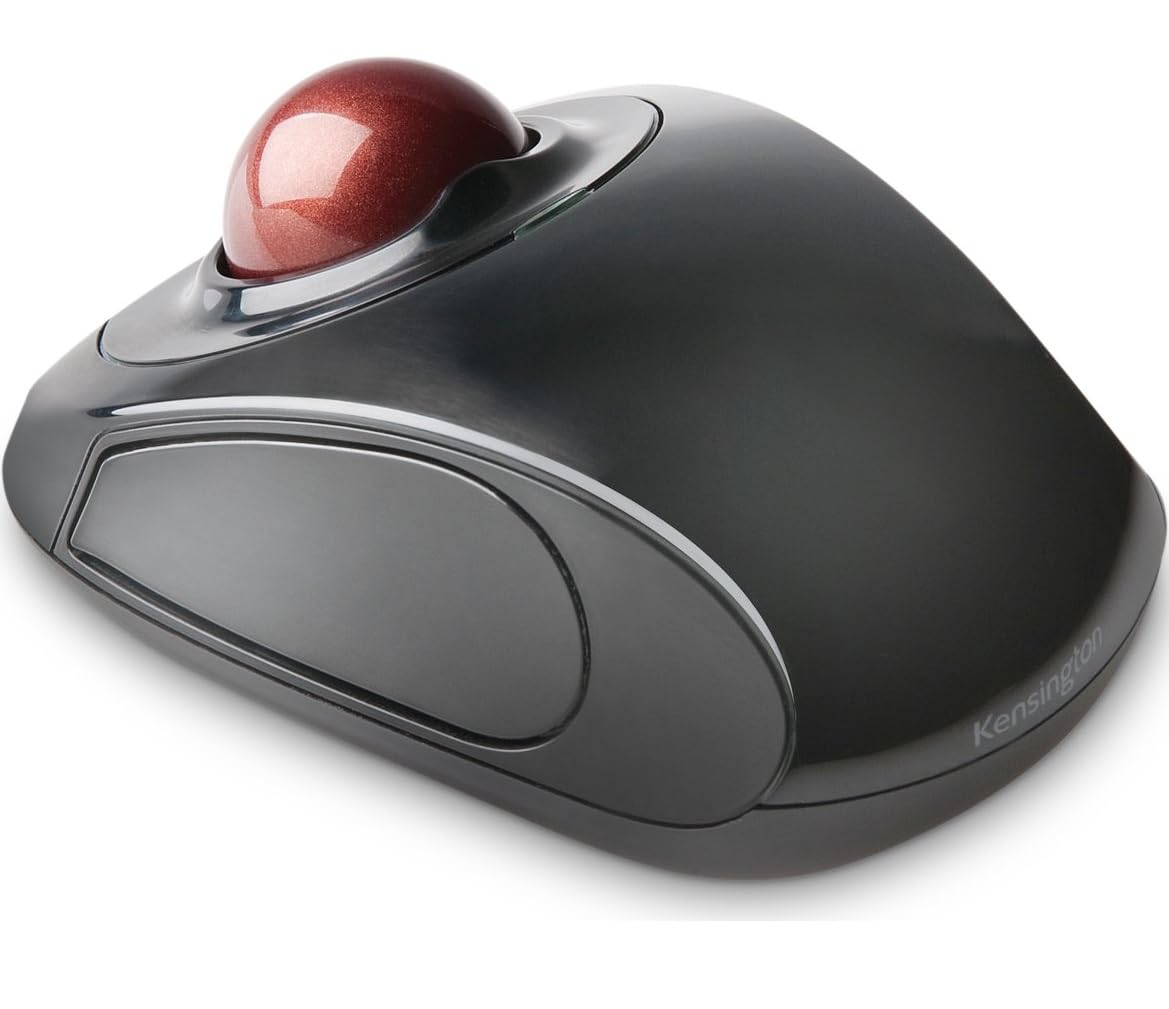


🚀 Elevate your workflow—wireless precision that moves with you!
The Orbit Wireless by Kensington is a compact, ambidextrous trackball mouse featuring 1000 DPI optical precision and a 2.4 GHz wireless Nano receiver compatible with Windows, macOS, and Chrome OS. Designed for professionals, it offers ergonomic comfort to reduce wrist strain, unique touch scrolling for effortless navigation, and a built-in receiver storage for ultimate portability. Powered by 2 AA batteries (included) and backed by a 5-year warranty, it’s the perfect blend of productivity and freedom for the modern mobile user.


| ASIN | B0050SPZMK |
| Additional Features | Wireless |
| Antenna Location | Office |
| Are Batteries Included | Yes |
| Are Batteries Required | Yes |
| Best Sellers Rank | #373 in Computer Mice |
| Brand | Kensington |
| Built-In Media | 2.4 GHz wireless Nano receiver, 2 AA batteries |
| Button Quantity | 2 |
| Color | Black |
| Compatible Devices | Windows 7, Windows 8, Windows 8.1, macOS 10.8, Windows 10, macOS X 10.11, macOS 10.10 or above, Chrome OS 44 or above, macOS 10.9, macOS Sierra 10.12, macOS 10.13 or above |
| Connectivity Technology | Wireless, 2.4GHz USB Receiver |
| Customer Reviews | 4.2 out of 5 stars 3,753 Reviews |
| Enclosure Material | Plastic |
| Global Trade Identification Number | 00085896723523, 00163120444670 |
| Hand Orientation | Ambidextrous |
| Hardware Platform | Laptop, PC |
| Item Dimensions L x W | 7"L x 2"W |
| Item Height | 6 inches |
| Item Weight | 240 Grams |
| Manufacturer | Kensington |
| Model Name | K72352US |
| Model Number | K72352US |
| Mouse Maximum Sensitivity | 1000 Dots per Inch |
| Movement Detection | Optical |
| Movement Detection Technology | Optical |
| Number of Batteries | 2 AA batteries required. (included) |
| Number of Buttons | 2 |
| Operating System | Chrome OS |
| Power Source | Battery Powered |
| Range | 5.0 meters |
| Special Feature | Wireless |
| Style Name | Wireless Mouse |
| UPC | 132017583631 896918765168 085896723523 163120444670 803982775078 942999219899 523160922802 641438719104 012300562324 031112836805 041114109838 617407460315 858967235238 763615904896 971472281184 642125299664 |
| Unit Count | 1.0 Count |
| Warranty Description | 5 Year Warranty |
R**E
What's not to like!??? w/ Update
Update, 3/28/2014: Nothing major in the review below has changed -- still really love this trackball. But I have noticed that my comment about my "grip" on it is no longer correct. I use exactly the same grip as I did on my Logitech Mouseball. It just took a little usage time to get the feel of the different shape. So -- I suppose you could say it took me several weeks to fully adjust. But I never really noticed it. In the end, you can bump my review to the even "better" side a bit. Updated, 3/12/2014: I'm updating earlier than expected because this trackball is better than I had anticipated. Consider my rating a 5+. I agree with the advise to download the custom software -- it could fix any concerns you have. What I found shortly after my original post was that at times the cursor would unexpectedly jump several lines shifting my point of view in the document. Irritating but not severe. But I eliminated that behavior by customizing. Specifically, I attempted to cancel any action from the right-side scroll pad. Since that, I HAVE NOT HAD ANY PROBLEM AT ALL with the cursor jumping or the file changing perspective. I left the left scroll pad active, but I never really use it. (But it does work.) The other custom fix eliminated my only other "nuisance" issue. I slightly reduced the speed of the ball tracking to the cursor. This makes it almost identical to the Logitech Mouseball action despite the smaller ball. For those who want scrolling, you can set the software to adjust the speed across a wide range from Slow (default) to Fast. There is also an option call Inertial Scroll which I don't even know what it is. BTW, it IS possible to set a "chord" action using the software. Chording is pressing both buttons at the same time. There are 14 different options (example: invoke your browser) plus the default "disable" or "no action". Also, I use the power slider on the bottom to turn the trackball off overnight to extend battery life (and because I sometimes just use my tablet for days instead of the laptop). Other than this, because I have no wire to interfere with my movement, I constantly find myself in a small celebration mode. Just pick the trackball up and get started or quit whichever is right (and think about how great this trackball is). Original post follows: Dimensions: 4 3/8" long, 3 1/2" widest part, 1 1/2" high Ok, I have to admit that I've only had this mouse installed for about 5 minutes, but the only way you'll get it away from me now is to pry it from my cold, dead fingers. I just don't get any of the negative reviews. I'll come back with an update after I've been using it for a few weeks, but here's why I like it so much so quickly. First of all, the toughest thing about starting to use it was getting it unpacked. Not that it was so bad (although the batteries were REALLY held strongly in place). The packaging is great and quite protective. But none of that sealed plastic pack that takes a knife and physically dangerous slicing to get open. All it takes is to break the seals (yes, two), open the top, remove the plastic underlid to free the base, remove the tape and padding, take out the thumbnail transmitter, fight a little with the batteries, insert them, plug in the usb thumb, turn the trackball switch on and you're up and running. (Oh, yeah -- be sure your computer is on.) No, I haven't downloaded the driver -- not sure I know why I want to. But I'll get around to trying it and add that report to my later update. Meantime, I'm functioning BETTER than normal and EXTREMELY happy with this trackball. My configuration is a new (about three weeks old) Lenovo Flex laptop with Win 8.1 configured to my liking (minimal -- mostly just installed my software). For many years (since they came out) I've been using a wired Logitech Mouseball which I think is the best computer trackball made. (I own and have tried the Logitech wireless Mouseball but, while ok, it just doesn't fit me properly and I don't consider that "extra" unit to be "wireless". (I gave one of these things away. Now they are rather scarce and selling for a couple hundred. Go figure!) When I started the Kensington Orbit Wireless Trackball, it took me about 10 seconds to figure it out and adapt. I have NONE of the complaints of others about not having a place to rest my palm or wrist or any need to "clench" the buttons or incorrectly sliding onto the touch scroll pads. (In fact, without the downloaded driver, the scroll pads don't appear to be active.) In other words, as is, out of the box, without the custom driver, this is a basic, precisely functioning trackball. Now the differences -- understand that I'm right-handed. It IS a different shape and slightly shorter than the Logitech Mouseball. Consequently, while my palm rests on the body of the Kensington (K) similarly to the Logitech (L), the base of my hand rests sort of behind it and, frankly, stabilizes it. I have a medium sized hand, so small or large hands may rest differently. With my palm in that position, the tips of my index and middle fingers control the K trackball in exactly the same way as they did the L. The biggest adjustment for me (at least 5 of the 10 seconds) was that the smaller ball makes the cursor track more quickly. But there is no problem with control (and I'm 66 and not as coordinated as I used to be). The second major adjustment (the other 5 seconds) has to do with my grip on the K vs the L. On the L, I used basically a 4 finger grip -- thumb on the left button and 4th (or ring) on the right button. On the K, it is probably going to be more of a 5 finger, with the index and middle still controlling the ball with the ring just "there" and my little finger on the right mouse button. That's working well for me. (This is what changed per the 3/28 update -- same grip.) Mostly the way I operated on the L was to have my palm on the base and my index/middle on the ball and bring the button fingers into play as needed -- a very loose grip around the mouseball. That is exactly how I operate with the K. Ok, I just went to several other applications to see if the scroll pads would operate differently -- they did. Or rather, I figured out how they are supposed to work. (So I guess this means it takes longer than 10 seconds to adjust to the K.) When I read the complaints about the scroll pads doing strange things, I got the impression that they were left/right scroll controls. <shrug> But no, each does the same thing -- scroll the screen or window up and down (get it -- "scrolling"). It doesn't matter which pad you use (right or left) they both cause scrolling up and down. Now how anyone can say that they accidently keep scrolling off into some unknown area of their doc, I have yet to discover. But, hey, maybe it's just me again. I find that the scroll pads are a tad stiff to invoke the scrolling. Something you would want in order to avoid scrolling off into limbo "accidentally". (Now if you were gripping with a tight "clench", maybe something else would happen, but I've never used a trackball that way and don't think I'll start now. Or maybe if you press your fingers all over the base including the scroll pads, you could move or scroll inadvertently. I still don't see how I could "accidentally" touch the scroll pads while rolling the trackball with my index/middle fingers. I control the ball on the top maybe inch of surface maximum -- not the sides of it.) One of the apps I require a trackball for (other than just vastly preferring it to a mouse) is Sketchup -- the former Google now Trimble product for cad/cam-like function. That was one of the apps I used to check out the Kensington. Also, MS Word and a very complex set of spreadsheets in Excel. No problems -- love this trackball. It also does not interfere with the standard touchscreen capabilities of Win8. Not sure what else I can add right now. I am wireless with an excellent trackball. I can use it on the arm of my chair, on a desktop, on my lap and even on the wrist rest of my laptop with no problems. And that d--- cord doesn't get in my way or cause me to pull the trackball off when I forget it. :<)
A**R
VR Mouse!
This is the best mouse I could find to control my phone during VR sessions. I'm able to perform all necessary tasks to operate my phone effectively without touching my screen. The size is comfortable, not too large, so I can hold it in a pocket for mobile use. I'm planning to use this set up as a translation device while traveling.
Q**H
Kinda, sorta not bad
I've been using Logitech Trackman Marbles and keyboards with scroll wheels with my desktops forever and never had a complaint, but on my work and personal laptops with no scroll (if I'm going to scroll with the D pad, I may as well use the D pad) then there's the cord...something had to change. As a Logitech guy, I picked up a M570 thinking I'd get used to the thumb thing...not gonna happen. So I gave one of these a shot. It is a small form factor, I've got bigger hands and I don't see myself working it for an all day session but for a couple 3 hours here and there, no problem. I read a lot of people have issues with the scroll ring, honestly I don't. I tend to roll the ball with my index and middle and use my ring on the scroll. It's low enough that I don't touch it unless I want to. It's PnP and the windows stock mouse driver will give you enough tweaking, so as a limited user on my work laptop I'm good to go without having to install anything, the Kensington software is utilitarian, I like a fast cursor and heavy acceleration, no problem, button mapping is no better or worse than Logitech's and the scroll can be dialed in but like anything "touch", it can be jumpy, not drive you nuts jumpy, but jumpy. One thing I will say, the right click button is in an awkward place, it may just be the way I hold it?, may be the size?, may be the design to keep it ambidextrous? I don't really know...I just don't like it. The ball is small, accuracy suffers because of it, if this was my first trackball I'd be frustrated but it's for my laptops. The whole thing is smallish (which is what I was kind of looking for) so I'll live with it. The ball is pretty stiff out of the package, I just did mu usual break in process and it's now like butter. I'm not real sure if this thing shuts itself off after time, but I'm used to turning off peripherals so meh, Over all, for a wireless trackball with scroll for what you pay...you won't be blown away but you won't have any buyers remorse either...I'm torn between a 3 and a 4 star, right click is irritating but I'll eventually get over it, end of the day, it works pretty good.
B**M
Fantastic track ball where space is an issue, or for travel.
UPDATE 10/31/15 After living with this trackball a few months it has become my default input device. I own the "Expert" trackball and still use it occasionally on my home desktop, although now I use this trackball even there. Why: It's wireless It's small It is comfortable to use, fits in my had perfectly. It's effortless to use. Now that I have been using this device almost exclusively on the days I forget to take it with me to work I remember just how much "work" a traditional mouse is to use. Once you go to a track ball for a while you will see what I mean. Using the software from Kensington the sensitivity on the ball itself and the scroll ring. How to disable the scroll ring? Yes there is a scroll ring on this trackball. It is not a moving part, it is sensors on the left and right of the trackball. Disable it? why? If it is too sensitive adjust it in the software. If you are using this device and not using the software you are missing out on the real power of this device. It takes a little time and experimentation, but once you do you will end up with a pointing device that is very intuitive and productive to use. If you are new to this device and your finger keeps hitting the scroll ring don't do something drastic such as modifying the hardware to disable it. After you use the device for a while your muscle memory will start to kick in and you will learn to love this feature. I cannot imagine not using the scroll ring, once you had has learned where it is you will find scrolling through documents, controls in games, and web pages effortless and you will wonder what you ever did without it. Again it may take a few days for you had to "learn" where it is and some adjustment in the software to get it to work the way you want, BUT once you do you will find this feature invaluable and help to increase your productivity on the computer. Battery life I just put in my second set of batteries. That's after almost 3 months of continuous use. In the devices defense I usually forget to turn it off. It travels back and forth to work with me daily, I use it probably 9 or more hours a day. Rechargeable batteries, that will probably be my next step just haven't gotten around to it yet. The batteries last so long I keep forgetting. When I do I will update this review. Losing the usb adapter? 3 times a day I open the battery compartment, put in or take out the adapter. It's habit now, If I lose it shame on me. Would it be better if bluetooth and no adapter needed of course. Hopefully in the next version, when that happens I will be one of the first in line to purchase it. Would I recommend it to a friend or coworker? I do, almost anytime someone sees it. Using it makes your computer almost an extension of your brain! Once you set it up and get used to using it you don't even think about it. Scrolling, selecting and dragging is effortless. Through the software I have set using both buttons (clicked at the same time) to drag, how great is that. I work on multiple screens (also highly recommended) so I use this a log. There sees to be a lot of misinformation about this device. Now that I have been using it for a while, perhaps I can clear things up. I'll start with the most misleading and work backwards. Not compatible with 64 bit systems. This is false. Yes the version of the software is not 64 bit, but this is not critical. All my machines run the 64 bit version of the OS's and I have no issues. I run Windows 7, Windows 8.1 and Linux (Fedora and CentOS no trackworks for Linux just works like a regular mouse). Again all 64 bit, Trackballworks software works great on all my windows machines. Since the Windows OS supports using drives and software that is not 64 bit on 64 bit machines this is not an issue. Input devices like mice and trackballs send such little data 64 bit versions of the software are really not needed. Again a non issue. I can't download the Trackballworks software. Really? Doing a quick google search on Trackballworks the software is available from several locations. I was able to download the latest version from the Kensington website with no issues, I noticed it is also available on CNET and several other places. Of course you should always download directly from the manufacture when possible. Websites do go down, sometimes for maintenance, If at first you don't succeed wait a day and try again. Email Kensington support, again I downloaded it first try from the website. I have been using the Kensington Expert Mouse (the much bigger brother to this one) which I highly recommend. Also Never had a problem getting software form Kensington (used for 20+ years). It's useless if you loose the transmitter. Da, sorry, I don't see how this is the device or the manufacture's fault. There is a place for storing the transmitter inside the trackball when you travel. Again a non issue. The courser jumps when I touch the scroll ring. Simple, don't touch the scroll ring! After using this device for 15 minutes I learned where to position my fingers to eliminate this problem. The scroll ring works great, it is adjustable from within the Trackballworks software and is a great addition to the device. It is not a mechanical "ring" like some of it's bigger brothers so touching it will activate it. There is plenty of room on the device to rest you fingers to avoid this. Trackball is too sensitive / not sensitive enough This is fully adjustable within the Trackballworks software. I will sometimes change this adjustment if I am working in photoshop or autocad and need to be more precise. You can also set the pointer to accelerate when moving from within the software. It takes some experimenting with the settings, but you can end up with an input device that works the way you do, making it very easy to get around the screen and get work done. Summary: If you use a full size trackball at home or work and need one for travel this is fantastic. Once you get used to a track ball it is hard to go back to a mouse. If you have limited space at your workstation this is a great choice. It can be used by both left and right handed users, Trackballworks software in Windows and MAC give you very fine control over the sensitivity of the track ball. I started with the original Kensington trackball back in the days of the original Mackintosh (yes I am an old geek) and have never been disappointed in any Kensington trackball I have owned. Update: Used it exclusively on a 3 week trip. I am now continuing to use it at home. Once you get the software adjusted this is a great little input device. The fact it is wireless makes up for the small size most of the time. My large kensington trackball now lives permanently on my desktop, I use this on my notebooks.
N**G
a few observations...
I would like to share a few observations with potential future owners of this trackball. - This trackball is a good bit smaller than I initially expected. Granted I was coming from a Kensington Expert Mouse, which is quite large, but this trackball was no larger than an average mouse. Obviously whether this is good or bad depends on individual taste. - This trackball is light. Again, a matter of personal preference, but I prefer the base to be a little bit heavier to keep it from sliding around my desk. Also, durability is a concern with its lightweight as well. Time will tell. - The scroll "thing". I'm all for trying something new, but this thing is touchy. Again, coming from the Expert Mouse I may be a little spoiled on the scroll ring, but given the size difference something similar would have been difficult to implement. -- It only has two mouse buttons. I didn't think they made mouses/trackballs without forward and back buttons anymore. A little thing, sure, but since most time on computers is usually spent browsing the web, it is a bit of an annoyance. I would have rather had a more basic scroll wheel and the extra buttons. but I knew what I was getting when I ordered it. - Tiny trackball. Again a product of the smaller design and power considerations - it is battery operated after all - it reduces precision compared to a larger ball. This is possibly my single biggest complaint, and again the matter of preference, larger trackballs make it easier to make precise movements as well as quick movements across the desktop thanks to their greater mass and inertia. And finally, I would like to mention my disappointment in its compatibility with 64-bit operating systems. Currently, the only compatible version of TrackballWorks is an unsigned beta driver. Even following the instructions provided by Kensington, I was unable to get it working and have had to instead use the native Windows drivers. At one point the cursor stopped moving entirely, requiring me to navigate with the keyboard to roll back the driver to the default driver. Presumably a non-beta version should be out sometime soon, but I still don't understand why they would release a product before the software is ready. It is not as if 64-bit Windows 7 systems are unusually rare. In the meantime I will have to use a third-party mouse control program to offer the same basic controls Trackballworks provides. I feel bad for the person not as computer savvy as myself who buys this trackball and has to deal with that mess. Software notwithstanding, the Kensington Wireless Orbit Trackball is a nice, functional, wireless trackball that will fit most users needs. It's ambidextrous design does not go unappreciated, either. For someone with very limited mobility and no functional use of their hands such as myself, this simple layout (without all the little finger buttons and thumb trackballs other wireless trackballs all seem to have) is a welcome new addition to the limited selection of trackballs currently on the market.
M**S
BEST small, compact track ball w/ touch scroll. It takes time to acclimate. Clean after use.
UPDATE: My opinion changed! Excellent little track ball. Small footprint. It's about 1/2 the size of the Logitech Marble Mouse, which is a 4 button track ball. The Kensington wireless track ball might be small, unhindered, and performs fine, but it only has 2 buttons and a touch scroll around the ring of the track ball bezel. If you need to go back you'll be using the toolbar to do so. Also, since it is smaller and the buttons are further up, you will be positioning your hand lower and further back with your finger tips on the ball and your lower palm and wrist on the desk rather than resting on the unit like the Logitech Marble Mouse. It's nice and responsive, but sometimes the scroll ring is activated by my fat fingers while I'm using the track ball. UPDATE! This is the perfect mouse! True, it doesn't have extra buttons like "back" for web surfing, but it's great for a common user. I got huge hands. This mouse is about 1/2 the size of my hand extended and gives me no wrist troubles. Don't listen to the whiners who say it makes the cursor jump. You can adjust that in settings. You also need to clean it.
R**M
Not so good after all
I wrote a positive review after I had this trackball for a short period. It was good until I had to change batteries and then it was unfixable. The battery coils just wouldn't connect with the new batteries. Kensington made good on its warranty and sent me a new one fairly quickly. Unfortunately, the same thing happened with the new one. I didn't bother contacting Kensington -- there was no point. The product is clearly defective. Two dead trackballs and nowhere to go. Old review: I have been looking for a wireless trackball for a while and have not been happy with the available selection -- most are oddly shaped or small so they aren't suitable for someone who doesn't use it to play games. I was reluctant to order the Kensington trackball because the reviews were not great. But I finally broke down and ordered it. I'm glad I did. This is one time that the reviews do not sync with my assessment. The trackball is the right size for my hand -- I control the ball using my index and thiird fingers and the buttons with my thumb and ring finger. That works fine. So far, the battery hasn't had to be changed despite almost 15 hours use per day for over a month. The one flaw, the thing that precludes me from rating it five stars, is the scroll ring which causes the cursor to jump and move seemingly on its own. In actuality, it is just hyper sensitive to touch, and when I accidently brush against it, it moves. I don't know who had the bright idea that this is a good thing, it is a ridiculous feature. However, if I remember to just place my fingers on the trackball and avoid touching it accidently, it doesn't move on its own and it is a very good wireless trackball, operating just like the Kensington wired trackball. I am going to look for instructions on disconnecting the scroll ring.
C**.
Former Orbit Sroll Ring user very satifsfied
I am a former Orbit Scroll Ring user. It took me a few days, but I can say that I am just as happy--if not happier--with the Orbit Wireless over its wired scroll ring counterpart. I'm using it in regular duty, not just in a pinch on the go. It took me a few hours to get used to the profile and button placement. At first I thought the aggressive hump in the back was going to cause problems, as the wired version has a fairly shallow slope from the palm rest in the rear up toward the ball. A little adjustment with my palm placement (ie., resting the palm on the table rather than on the rear of the unit), was all that I needed to do to adapt. After that, my thumb and pinky kind of fell in place to adjust to the more vertically positioned, smaller buttons. I am sure this is a matter of hand size. I imagine users with larger hands are going to have a harder time adjusting to the button placement on the Orbit Wireless. (For reference, I generally fit a size medium men's glove.) The scroll wheel is the only area where I felt that I really had to compromise to live with the device. On the wired scroll wheel, I was accustomed to using more than 360-degrees of the wheel's continuous range. With the wireless version this isn't possible, as the touch-sensitive areas are split down the middle--around 170-degrees on each side. I don't know if Kensington's TrackballWorks software allows for binding these two touch-sensitive areas into a "continuous" scroll function, but I'm using the trackball with Windows 8.1's standard mouse drivers, and it treats either side as separate up and down touch-sensitive areas. On the wired Orbit, I used my ring finger to manipulate the wheel. I do the same with the wireless version, but I had to retrain my finger to keep within the touch-sensitive range. It's a lot more like using a scroll wheel on a mouse. Not a big deal, but I miss the physical wheel. In my week's long use, I haven't had a real problem with the sensitivity of touch scrolling. I've found the behavior to be functionally predictable. A physical wheel is more predictable and preferable, but I can live with touch. I have not had issues with inadvertently touching the scroll areas. The wired version's wheel pretty sensitive, so I got into the habit of floating my fingers off the wheel. This habit translated well on the wireless version. The actual ball took a little adjustment as well, but after a few days I don't miss the larger size of the wired version's ball. I did need to turn up the speed one notch in Pointer Options, but that's all I needed to do. My behavior pretty effortlessly adapted to the smaller size. And I've found the smoothness of the rolling and flicking of the ball to be as good as the wired version's. It took a few hours to loosen up, but once it did it was more than fine. All in all I'm very satisfied, and I think it's worth the purchase price. Being able to clear up some of the cord clutter and easily picking up the trackball to use with my netbook around the house (or on the go) is a HUGE plus.
TrustPilot
1 个月前
1天前