We remain fully operational. Our teams are working around the clock to ensure your deliveries continue safely.

下载应用程序



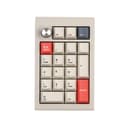
🎮 Elevate your desk game with the CIDOO V21 – where precision meets style.
The EPOMAKER CIDOO V21 VIA is a high-performance, programmable mechanical numpad featuring a gasket-mounted design with Poron foam for superior typing comfort and noise reduction. It offers versatile triple-mode connectivity—wired, Bluetooth 5.0, and 2.4GHz wireless—powered by a robust 1000mAh battery for extended use. Crafted with an aluminum chassis and durable dye-sublimated PBT keycaps, it includes a metal rotary knob with customizable RGB lighting, making it an ideal accessory for professionals and gamers seeking both functionality and aesthetic appeal.


| ASIN | B0C73V1D51 |
| Additional Features | Backlit |
| Antenna Location | Business |
| Best Sellers Rank | #10,689 in Video Games ( See Top 100 in Video Games ) #749 in PC Gaming Keyboards |
| Brand | EPOMAKER |
| Built-In Media | Keycap Puller, USB Cable |
| Button Quantity | 20 |
| Color | CIDOO V21 |
| Compatible Devices | Laptop |
| Connectivity Technology | Bluetooth, USB-C |
| Customer Reviews | 4.3 out of 5 stars 222 Reviews |
| Enclosure Material | Aluminum, Polybutylene Terephthalate |
| Hand Orientation | Ambidextrous |
| Item Dimensions L x W x H | 5.71"L x 3.62"W x 1.65"H |
| Item Weight | 770 Grams |
| Keyboard Description | Gaming |
| Keyboard Layout | QWERTY |
| Manufacturer | EPOMAKER |
| Model Name | CIDOO V21 VIA Numpad |
| Model Number | CIDOO V21 VIA Numpad |
| Number of Batteries Required | 1 |
| Number of Keys | 20 |
| Power Source | Battery Powered |
| Processor Count | 1 |
| Recommended Uses For Product | Business |
| Series Number | 21 |
| Special Feature | Backlit |
| Style Name | Contemporary |
| Switch Type | Mechanical |
| Theme | mechanical keyboards |
| Unit Count | 1.0 Count |
| Warranty Description | 1 year warranty |
D**I
An excellent alternative to the official 8-Bitdo keypad
I picked this up after purchasing the NES 8-Bitdo keyboard, and I'm glad I did. This thing is SOLID. I mean, it could be included as a weapon in a game of Clue. The construction is solid steel, the keys feel great and are very fucntionally responsive, and bluetooth connectivity is absolutely reliable in addition to the wired and wireless dongle connection options. You simply plug in the wireless dongle to your home desktop, and that is as easy as it gets when setting up this device. The battery lasts forever, it looks great with it's backlight, and is worth every penny.
E**E
Incomparable typing experience
EPOMAKER CIDOO V21 Pro Pros: Bluetooth – no adapter needed, but it does come with one Typing Quality – this is the winner right here. By far the best keypad I tried. It feels and sounds amazing. I want to type on it just for fun because it feels and sounds so good. Sound – it sounds amazing. It is not super quiet, but for me, this is what a keyboard should sound like. It is very pleasant to listen to Customizable –programmable and I can move around the keycaps and hot swap the switches Cons: Size – this thing is a brick. No joke, it probably weighs as much as a brick. It is too big too big and heavy to consider traveling with When I first picked up the box, I couldn’t believe how heavy it was. I immediately thought I wasn’t going to keep it because of the weight, but after unboxing and trying it a little bit I couldn’t stop thinking about how nice it is to type on. Trying the other keypads just couldn’t compare to the feel and sound. This is the one I ultimately decided to keep. It was the most expensive but personally I think it is worth it. I will not be traveling with it, but I am going to try and limit my work when traveling anyway. Context: I recently started a remote job that I need a number keypad, and my work laptop doesn’t have one. I couldn’t decide which one to get so I grabbed several different options to try. Things in order of importance to me: Bluetooth (not a 2.4 Ghz adapter because I want to keep the USB ports open), portable (I might have to travel with it), sound (not too loud in case I am working in a public space), typing quality (preferably mechanical switches), and customizable (hot swappable keycaps and switches and maybe programmable). I didn’t extensively use each: I assume all of them work so I tested most of them without connecting them.
K**S
Great build, but VIA compatibility is questionable at best.
Bought this and the V87 separately. Both are amazing quality builds for the price. The Keycaps are fantastic, and the matte switches are actually pretty great too. Removed a star, because trying to modify key layouts on these has been very difficult in comparison to the Keychron Q series boards I have used- which are detected automatically by the VIA app and have been simple to adjust. Both the CIDOO V87 and this V21 are not recognized by the VIA app, and the sketchy downloadable files from the Epomaker site have not really worked reliably for me... If you want the default functions and light effects, and want to use it as a numpad alone, it's fantastic- but as a macropad, I'd avoid it.
C**M
Heavy, premium, creamy & thocky
I explain in the video, so please watch. Any springy or metal/mechanical sounds picked up in the video ARE NOT heard in person. I only noticed after editing the video. Very smooth sounds with no feedback, if you’re okay with that. I am impartial to GAETRON brown switches as they are silent with feedback, but on a number pad, it doesn’t bother me, mostly because this keypad sounds like butter. My husband isn’t really into keyboards like I am, and even he was impressed with how this thing sounds and feels. I’m pretty frugal, and even I believe the build quality is worth the money.
R**L
The best out there
It's built like a tank, seems to be metallic all around, works like a charm, it's weighted, feels so good quality. the keys sound nice. It's expensive but it's easily the best numpad out there. My only quirk is that the cable is shiny white and not closer to the color of the keyboard, or even black. but anyway I love this number pad.
C**A
This is a beautiful product
The solid aluminum heavy feel is firm. The keys have a perfect, non-hollow tactile feedback, and the accompanying switches have such a nice tick to them that I've fallen in love with this piece of equipment - enough that I grabbed the accompanying keyboard (that unfortunately doesn't ship with the switches I wanted, but the hot-swap option means I can just order those.) Being able to have a peripheral tenkey that I can position elsewhere for data entry, that has a backspace, and tab is fantastic and, maybe it only fits my personal use-case, but being able to switch between 2.4ghz / Bluetooth / Wired connections fairly simply means that I can minimize the footprint of my PC and work from home station! CIDOO makes good products. I'll update my review later down the line once I have put some time into it.
Q**E
Unreliable Macros
The Cidoo v21 has quite a few issues, and there are some good things about it. First, the good. The construction is pretty solid. I was pretty excited when I opened the box, felt the keys, case, etc. It's well built, no doubt. Key presses sound nice as well. That's basically where the positive things end, because the software is awful (likely more the keypad than the configuration software itself). Now, the bad. This is a macro pad, so a primary feature is for assigning macros to keys, and then running said macros. It basically won't do this reliably. You can download the configuration software from a link provided in the Cidoo V21 manual. In short, it doesn't seem to like certain special characters, or combinations of characters, when recording multiple macros. In tests where I've used very simple, short, safe combinations (e.g. "qwer", "asdf", "zxcv"), all macros were recorded and played back fine. More complex macros do not play back correctly, after another macro is recorded. Configuring macro pad is confusing enough that a bunch of people who have reviewed this macro pad have simply given up. I was able to figure it out from forums, pieces from the manual, and information from some of these reviews, but it took a long time. 1. The VIA software won't automatically find the device. You instead need to download a JSON configuration file from Epomaker, and load it into the program under the Design tab. The Design tab isn't exposed by default, you have to go to Settings, then toggle "Show Design tab", then go back to Design, toggle "Use V2 definitions (deprecated)", then load the JSON configuration file. 2. You can then use the Configure tab. If using the web browser, you may have to click "Connect to Device". Any key assignments are written to the keypad memory in real time, except for the macros. There's a button to click to save those. Now from the manual, you can determine that switching layers is done by using the FN key, or some of the MO keys. How and where to find the MO keys is unclear. It's under Configure --> Layers. Hovering over the MO keys in the VIA application reveals that they are modifier keys, which temporarily switch layers. So if you assign MO(2) to TAB, the 1 key on layer 2 to M0 (Macro 0), you need to press and hold TAB, and then press 1 to activate the macro. 3. After you've recorded your macros, assigned them to specific keys in each layer, there comes a problem. If you record a macro, then test it, it works. If you then record a second macro, you'll find that the first macro doesn't play back correctly anymore. This doesn't happen with short, simple macros. In order to fix the issue, you have re-record the macro. In short, each macro you record mangled when you record the next macro. On the plus side, factory defaulting the keypad works great. Just press and hold FN and 0 for three seconds.
K**M
Keypad
Great product extremely robust very well made great craftsmanship, if I had picked up this brick in a store I would’ve expected it to be like 200 bucks, smooth butter keys great finish warm construction. Excellent quality.