We remain fully operational. Our teams are working around the clock to ensure your deliveries continue safely.

下载应用程序



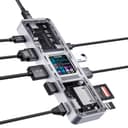
🚀 Power Your Productivity with the Ultimate 10-in-1 Hub!
The DOCKCASE Explorer Edition USB-C Hub is a premium 10-in-1 docking station designed for professionals seeking maximum connectivity and customization. Featuring dual 4K@60Hz HDMI and DisplayPort outputs, 100W power delivery, ultra-fast 10Gbps data ports, and UHS-II SD card slots, it transforms any laptop into a powerhouse workstation. Its rugged aluminum chassis and smart LCD display provide durability and real-time insights, making it an essential travel companion for multitasking millennials who demand speed, style, and versatility.


| ASIN | B0CJQTCSGX |
| Additional Features | Powered, Plug and Play |
| Best Sellers Rank | #348 in USB Hubs |
| Brand | DockCase |
| Color | Silver |
| Compatible Devices | [VARIOUS] Laptops, Monitors, Projectors, TVs |
| Customer Reviews | 4.1 4.1 out of 5 stars (136) |
| Data Transfer Rate | 10 Gigabits Per Second |
| Enclosure Material | Aluminum |
| Hardware Interface | Ethernet, HDMI, USB 3.0 |
| Manufacturer | TMD Touch |
| Number of Ports | 10 |
| Operating System | Mac OS 9, Windows 10, Windows 7 |
| Total Usb Ports | 6 |
| Warranty Description | 1 year |
M**N
Lots of Power in a Premium Package (4 Week Review)
The DockCase 10-in-1 has some extremely useful and unique features I have not seen in any other dock. Beyond aesthetics, it truly shines in portability and customizability. Since it sports a SOC, it goes beyond just providing information readout -- it offers advanced customization options. I highly recommend this to anyone looking for reliability and device compatibility as it is bar-none the best I have ever used. I rarely review products, but this is one that I think deserved my time. I'm an engineer and techie (hence the long review) and have always liked this company's products -- I already own a first-gen 6-in-1, which I bought several years ago as well as two DockCase NVME SSD enclosures (which can be hard to tell apart sometimes). I also bought my younger sister a Dockcase 7-in-1 as a gift when she went to college, which she has been using regularly. My initial intended use for this dockcase 10-in-1 was to use it at my desk, but I ended up taking it with me to use with my Laptop, Switch, & Steam Deck a few times already as it was a significant upgrade over my old dockcase 6-in-1, which I have now relegated to hooking up my Steam Deck in my bedroom. Power & Customizability: Unlike the first generation 6-in-1 dock which had a pinhole and required a paperclip or sim card tool to change settings/interact, the newer 10-in-1 sports a flush button that can be used to more easily navigate the display and change settings - which is a significant upgrade. It also has many more configurable settings and options. The LCD screen is not just for aesthetics. This dock allowed me to dig deeper into its behavior and make some useful tweaks - for example, the internal display's orientation can be changed to fit the dock's orientation on the desk. One feature I found to be useful is the ability to tweak how much power the dock is allowed to reserve for its ports when plugged into an external power source. The standard specification for USB A 3.0 is only 4.5W, which is what you will find on most motherboards, laptops, and other docks. However, this dock allows the user to directly set the maximum amount of power consumed by the dock itself - either to reduce consumption or allocate more for power-hungry peripherals. The USB-A ports can provide up to 7.5W, while the USB-C port can supply up to 15W. For me, this is a game changer. When hooked up to my desktop and an independent power source, I am able to reconfigure the dock to properly power my notoriously power-hungry X56 Hotas (flight) Controller over USB A. Previously, these controllers drew too much power from my mobo and would flake out. This could be equally useful for anyone trying to power external HDDs, displays, or keyboards over usb or on the go. Similar to my old 6-in-1, when hooking up a device for passthrough charging, the dock provides a readout as it negotiates a charging speed. I can see whether or not my device is being properly charged, which is kind of useful when using cheaper 3rd party bricks. Cheaper high-wattage GaN bricks have a tendency to throttle power delivery if they get too hot. The dock is able to monitor and display changes in power input if that happens. I have actually found faulty power bricks this way. Beyond this, there are a few other options for displays that I have found useful. When hooking my steam deck or laptop to a TV the dockcase helps with identifying the display and lets me know if my device is connecting at the resolution I desire or if the settings are off somewhere. This is pretty much the same as my old 6-in-1. Testing Bandwidth Saturation & Temperature Management An issue commonly seen in docks is bandwidth saturation, however I have had no issues with this dock. Unlike my old Dell DA300 that overheats, slows to a crawl, and disconnects when more than 3 ports are saturated, the DockCase dock stays pretty much icy cool to the touch, since the bottom acts as a giant heat sink of sorts - it also has a temperature readout. UHSII SD Card Reader The UHSII SD card reader is also a nice addition, since these days many docks and laptops tend to opt for cheaper UHSI options. Even when testing on a UHSI card, the increased bandwidth still makes a slight difference (+10mb/s) compared to the slot in my laptop. When testing the UHSII port, I used my Sony SF-G Tough UHSII SD Card, and compared it with the proprietary UHSII card reader I bought from Sony. The results were nearly identical, with the dockcase pulling ahead by about 5mb/s in reads. The Sony SD card reader I was using previously cost me ~$35 and only worked over USB A, requiring another dongle for use with USB C devices, so I am honestly really happy to have this feature on the DockCase, as it makes importing photos from my camera easier, especially when traveling. Portability and Build Quality The dock is slim and solidly built. It is far more rugged than it looks in photos, and is made of machined metal. The ports are solidly attached to the base board and held in place by metal clips (not glue). Additionally the lack of a permanently attached data cable is a huge plus. One thing I would like to see included is a sleeve of some kind (maybe with a pocket for holding one or two short cables). When traveling I threw the 10-in-1 in a thick PU sleeve meant for glasses, which I found to be more than sufficient for protecting the dock. When on the go, I also love the fact it fits perfectly in the pouch/cubby of my Steam Deck case -- with room to spare! Beyond this, the 10-in-1 is compatible with my Nintendo Switch, which is a significant upgrade over my old first generation 6-in-1. Things to Note: The dock did not come with a paper user guide, which I think would be helpful for anyone who wants to truly delve into its feature set and make full use of its customizability. As I mentioned previously, the dock did not come with a sleeve or carry case. DockCase seems to offer one separately, but it looked quite bulky. I was able to easily remedy this by using a PU sleeve meant for glasses -- which are like a dime-a-dozen on Amazon. Since I nabbed mine from my optometrist, I can't provide a specific recommendation. When lying flat on my desk, it can be a bit more difficult to read the LCD since it's parallel to whatever surface it is on. I think it would be cool if there was some sort of small stand, a magnetic mounting option, or under desk mount. I might try my hand at 3D printing something in the future if I have time. When using pass-through charging, this dock does not pass through the full 100W to a device, but eats some of that power (usually between 5-20W). So for example, if I use a 65W charger, I only have 40-60W output. Consumption of power like this is standard and still in-line with most high-end docks. Unlike other docks, power usage can be tweaked and configured through settings.
B**W
Portable Tech with LCD Display screen.
This is my 2nd product I have purchased from DOCKCASE the first being a M.2 Encloser, once again they exceeded my expectations. As an avid traveler and technology buff, I needed a strong and convenient USB-C hub that will match my demand for multitasking. This compact-sized hub has instantly become a staple in my travel pack. **Design & Build Quality: ** I love the sleek and modern design of the hub. It's extremely lightweight and travel-friendly, and it's so easy to slip into any bag or even a pocket. The aluminum finish not only provides it with a premium look but also ensures it is rugged. It's solid to the touch, and I really like the aluminum could double as heat dissipation. The clear view on the cover makes it stand out and look like no others. The Best feature by far is the LCD screen, which fully displays which port is in use and how much power is being supplied. **Ports & Connectivity: ** The DOCKCASE Explorer has a wide variety of ports that can support all my needs. With multiple USB ports, an HDMI port, and a USB-C power delivery port, I can connect my laptop, smartphone, and other devices simultaneously. The HDMI port is 4K resolution. Best of all it can work with up to 100W of power. The 10Gbps network is amazing for those of us with networks capable of that really makes it a premium device. Additionally, the built-in SD and MicroSD card slots are a savior for photographers or videographers who use their cameras frequently. I can directly transfer files at a fast rate without having to lug around extra adapters. **Performance: ** This hub delivers excellent performance, maintaining stable connections and rapid data transfer speeds. I’ve used it for charging my devices while transferring files at the same time, and it handled everything seamlessly without any drops in power or speed. The compatibility with both Windows and macOS systems is another plus.
H**L
Finicky and a Bit Flaky, But Delivers as Promised When Working
The hub works well when it's working, but it is extremely finicky on startup and frequently fails to initialize either the laptop or monitor connection properly, resulting in the monitor periodically going black for a few seconds, and the laptop not charging. I find I have to use the button on the hub to reset it from time to time when it stops working properly. The only way I've found to make it work properly is to connect the power supply to the hub and wait 30 seconds to a minute for it to fully power up, then plug in the monitor's power cable, then plug the hub into the laptop, wait about a minute for the hub to initialize its laptop connection, and then boot the laptop. My setup: Dell XPS 9370, Dell P2524H monitor connected to hub over DisplayPort. I use a good quality USB C cable rated at 40gbps and 240 W to connect the hub to the laptop and a high quality DisplayPort cable. I tested using HDMI but the behavior of the hub was the same. Once it's all working it delivers what it promises, and has a large number of ports that I use for a webcam, wireless USB controller for mouse, USB keyboard, monitor and power supply.
D**Y
If you use SD cards file transfer everyday, you need this. If only a few times a month, you better off with the cheaper 6-in-1 model.
TrustPilot
3 周前
2 周前