We remain fully operational. Our teams are working around the clock to ensure your deliveries continue safely.

下载应用程序


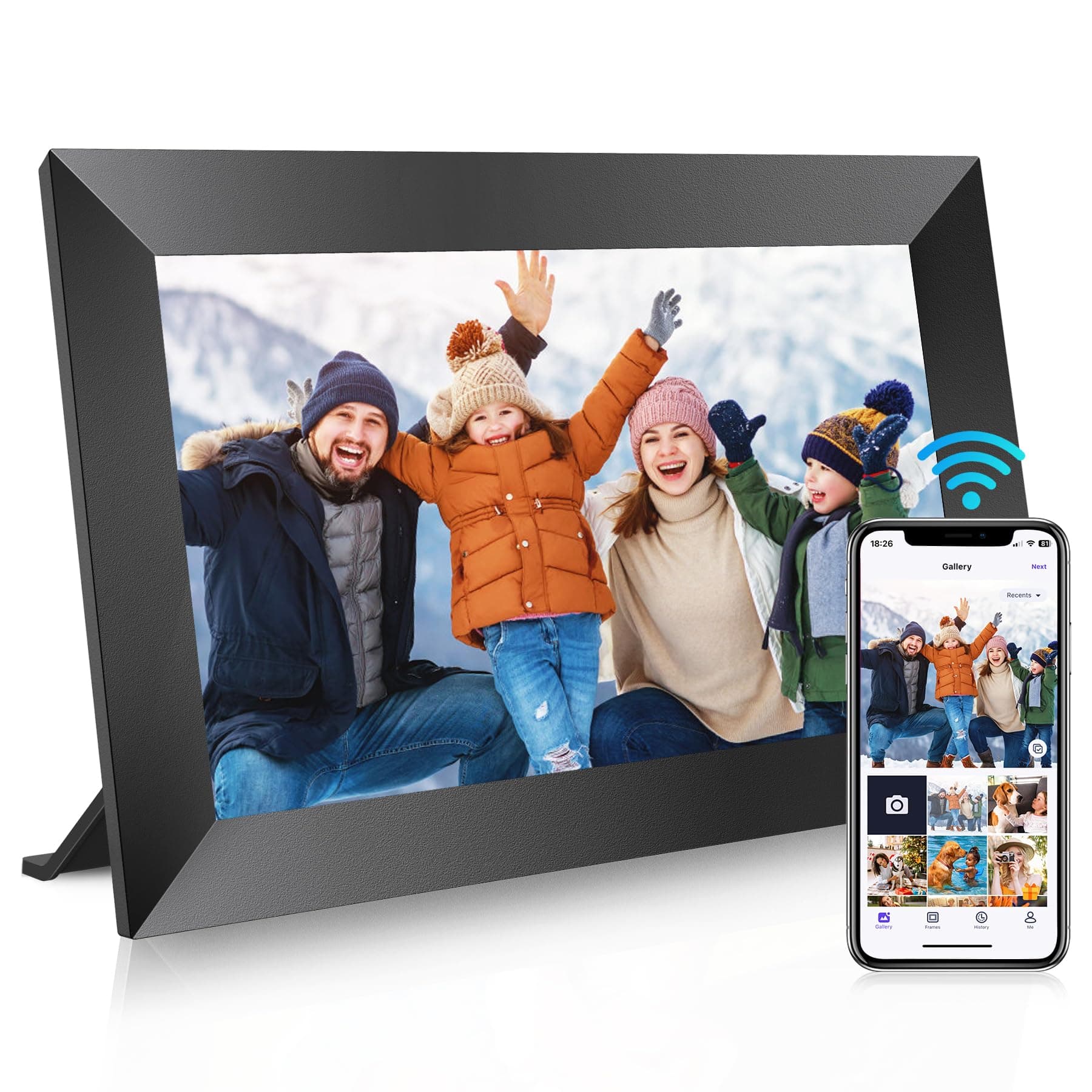




🖼️ Elevate your memories—share, display, and connect like never before!
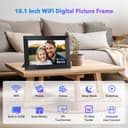
The WONNIE Uhale 10.1" Digital Picture Frame features a sharp 1280x800 HD IPS touchscreen, 32GB internal storage with SD card support, and Wi-Fi connectivity for instant photo and video sharing via the Uhale app. Designed for seamless global sharing and personalized greetings, it supports video playback with sound and offers intuitive touch controls, making it the perfect smart frame for modern families and professionals who value staying connected through vivid memories.

| ASIN | B0CFY6GPGJ |
| Aspect Ratio | 16:9 |
| Best Sellers Rank | #25,464 in Electronics ( See Top 100 in Electronics ) #43 in Digital Picture Frames |
| Brand | WONNIE |
| Color | Black |
| Compatible Devices | Uhale APP |
| Connectivity Technology | Wi-Fi |
| Control Method | App |
| Customer Reviews | 4.6 4.6 out of 5 stars (1,196) |
| Display Size | 10.1 Inches |
| Frame Material | Plastic |
| Item Dimensions L x W | 20.1L x 25.9W centimeters |
| Manufacturer | WONNIE |
| Memory Storage Capacity | 32 GB |
| Model Number | 102KZ |
| Power Source | Corded Electric |
| Resolution | 1280 x 800 |
| Touchscreen | Touchscreen |
R**M
Originally I used an Amazon echo show 21. Mostly for a photo frame for my photos. The echo show 21 was terrible for photo frame, high reflections of room lighting, must use Amazon photo service to send photos to frame, and the endless ads interfering with photos being displayed. So many downfalls. Then I realized that I just needed a large sized digital photo frame 21 inch, and I found the UHALE 21 inch digital frame for much less than the echo show 21 inch and the UHALE frame does everything I needed. This large 21 inch frame is amazing. Absolutely no reflections of room lighting. Setup was easy. The only issue was understanding how to link my iPhone to the frame, which is optional, but a little tricky. The frame has 64GB internal memory and photos are uploaded to the frames internal memory via USB flash drive, SD memory card, or via your smart phone (and uploading photos from a tablet also works). By linking your smart phone you can send photos directly from your phone to the frame (or tablet). That works beautifully. You have so many nice settings to work with. Rotation speed of photos, playing video files and YES the frame has speakers for sound. Settings to auto crop that fill the screen with the photo, or not. Just soooo many great options to mention. But if it’s adjustable, then there is an adjustment for it in settings. Comes with a remote control. Can access the frame settings in the UHALE phone app, or by using the remote directly with the frame. Also, you can install the UHALE APP on a tablet and send photos from the tablet. Sharp, bright, clear screen. Wall mount bracket is included and a table top stand is also included. Fairly light weight, much lighter weight than an echo show 21 for sure. Remote control, power cord, 64 gb of internal memory storage. If you’re wanting to display digital photos, this is the best solution. Forget about an echo show 21 as a photo frame. The UHALE frame is Amazing. I love it, it works great. PS. As far as I can tell, the photos and video must be uploaded directly to the frames internal memory. The frame does not display photos directly from an external USB drive or external SD card. So all photos and video to be displayed must first be uploaded into the frames internal memory via USB flash drive or SD memory card, or smart phone or tablet. You can delete gallery photos from the frames internal memory via frame settings using the remote. Delete old, upload new.
A**E
Excellent buy for family
D**N
Very nice!
J**D
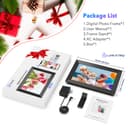
Uhale 21” Digital Frame Summary – I think this is an excellent high quality digital frame, with lots of storage, ability to manipulate the Photos for best appearance, and good customer service. This frame gets a 5 star rating from me. Because I was soo impressed I did a more detailed writeup. Packaging & Contents The Uhale 21” Digital Picture Frame comes well protected. The Frame and contents are inserted into a Styrofoam cut out case, which is then packed into external well taped up cardboard box. It comes with the Frame, sturdy plastic stand, wall mounting hardware, that allows for vertical or horizontal placement, Remote with 2 AAA batteries, (does not have a touch screen needs the remote,) Plug with power cord, and a user manual. Uhale App The Frame can be connected to a smart phone by downloading either the IOS or Google version of the App. More on this later. Storage The Uhale 21” frame comes with one of the largest storage capacities of any Digital Frame I was able to research. It has 64G of built in storage, of which approx. 6G is taken up by Operating system. In addition, you can add a 128G USB and / or an 128G SD card. These cards can be used for 1) Import Pictures or Videos 2) Export Pictures or Videos 3) Backup or Restore Pictures & Videos This allows for a restore after a reset or can be used to load onto a new Uhale Digital Frame. Note: Must use Fat32. If using SD card larger than 32G, need to format the card, using a program like Rufus, make sure you Indicate “no boot record” to be created. I purchased and plugged in a 12” USB Extender, so I can plug and unplug the USB without taking the frame off the wall. I also plugged in and left the SD card (after formatting for FAT32) in place. I use the SD card to back up the photos on the frame. Running a backup will overlay existing photos and only adds new pictures. Frame will also display last backup date. Settings It is important to understand that there are 3 sets of settings impacting the use of the Frame. 1) The iPhone (Smartphone) Settings for the Uhale app – When you first link (referred to as Binding) your Phone to the Frame via the App, it will ask you if you want to allow all Photos, select photos or None) I selected all and it loaded into the Uhale app “Gallery tab” everything I have in my Photos collection including documents. These do not get automatically loaded on to the frame. You have to select the ones you want to be sent. However, I didn’t want them in my Gallery at all. Emailed C.S. and told me how to fix in settings. I kept looking on Frame and on Remote and did not see the options they were referring to. I happened to access the iPhone Settings for the App and found the ability to allow all photos, be able to select which I want in Gallery or not allow any to gallery. 2) There are settings you can access from your phone, when you go into the actual App itself. These are pretty limited. 3) Then there are the majority of the settings you can access on the frame by use of the remote. The manual lists them all. It allows you to Delete, Import, Export, or back up restore Photos. In addition, has a default when uploading Photos, do you want them to fill the frame or not. Uploading photos to frame by using: A) Smart Phone 1) Using the Uhale App – by clicking on one or more photos in the “Gallery” tab of App. 2) Going into your smart phone’s own Photo Album, tapping on one or more pictures in your Photos, pressing the upload icon that appears as an option and select the Uhale App to upload to frame. Note: Up to 100 Pictures can be uploaded at a time. B) Using the USB and or SD card – Plugging either in, will cause a prompt to pop up, asking if you want to Import, export or actually play from the USB or SD card (even if not uploaded to frame). Can support a 128G USB or SD. C) The Uhale Website – Utilizing your PC or laptop access the site, and can drag pictures to the site for upload. Note: Does not have an option to upload via email. Manipulating pictures being sent to frame or even after they have been sent to frame. The manual is not always very clear, but playing with the Remote helped me figure out what to do. One of the most useful buttons on that remote is the MENU Button (3 lines) or the Home button (House) which is very similar. Pressing the Menu button, brings up a number of different functions you can use to manipulate the Photo. It allows you to select a photo, and if the image is blown up too large, clicking on the blow-up button, will bring it to a more manageable size and (based on a setting option chosen), will either blur the sides, add white or black bars. In addition, it will also allow you after a few clicks, to also move the image up or down, if a head is cut off etc. so don’t have to make it smaller. Customer Service I sent them 3 separate emails a few days apart. Each time they responded within 2 days, with either a “How To” link or description of how to do something. That is impressive. Miscellaneous Can display Time and Temperature in right corner, as part of photo display. Frame can be turned off via remote or placed in sleep mode with wake up and sleep time. Can also display Time, Time and Date, when Frame is placed in sleep mode. There are 4 different displays you can choose (See menu (3 lines) on remote – Lower right icon) What I would like to see added to this frame 1) Provide ability for adding pictures to the Frame via email 2) Make the Uhale app more usable like the remote. 3) Have a swivel on the wall mount, so can easily change from Vertical to Horizontal
S**N
Got this for myself and sent one as a gift. This is perfect for being able to see your photos without a lot of printing or clutter. I love the clarity of the pictures. It is so simple and easy to send photos to the frame and have the photos there in seconds. You can choose favorites, pick how long you want to see a photo and delete photos you dont want to see anymore. I will probably be buying more for gifts in the future!
TrustPilot
2 个月前
2 周前