We remain fully operational. Our teams are working around the clock to ensure your deliveries continue safely.

下载应用程序


📸 Print Smart, Live Boldly!
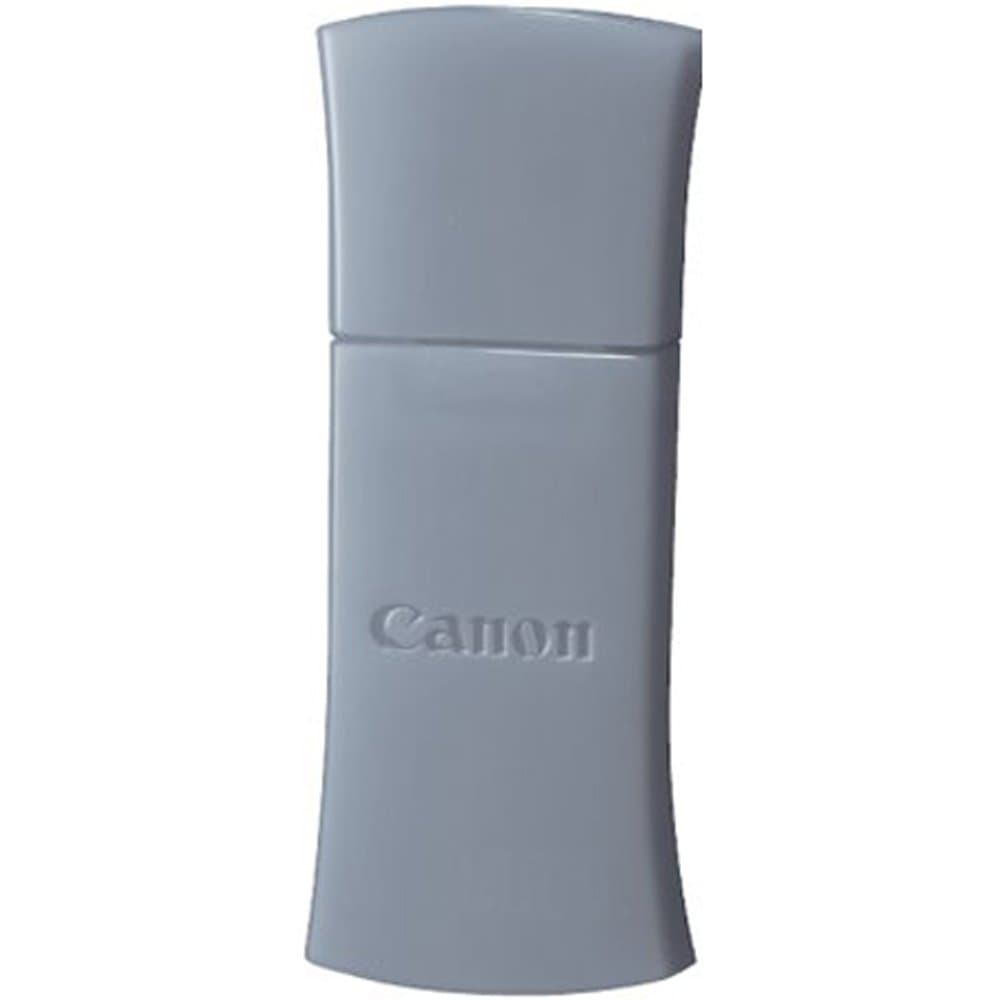
The Canon BU-30 Bluetooth Adapter enables wireless printing for a variety of PIXMA printers and Powershot cameras, offering a hassle-free, plug-and-play experience. Manufactured in Japan, this compact adapter ensures high-quality performance and broad compatibility, making it an essential accessory for tech-savvy professionals.
| ASIN | B00164822W |
| Best Sellers Rank | #4,516 in Camera Power Adapters |
| Brand | Canon |
| Built-In Media | VOIP Telephone Adapters |
| Color | Grey |
| Compatible Devices | Desktop |
| Compatible Operating System Family | Windows |
| Customer Reviews | 3.6 3.6 out of 5 stars (348) |
| Data Link Protocol | Bluetooth |
| Global Trade Identification Number | 00013803090697 |
| Hardware Interface | Bluetooth |
| Item Weight | 22.68 g |
| Manufacturer | Canon Cameras US |
| Mfr Part Number | 2553B002 |
| Minimum Required Operating System Version | Mac OS 10.12 Sierra, Windows 10 |
| Model Number | 2553B002 |
| UPC | 013803090697 |
N**.
A Great Item and If You Own a Cannon Printer, This Is A Must Have
This lil gadget expands what my Cannon MG5220 Printer is capable of doing. I works great and modestly priced (cheaper at Amazon than cannon). So easy to install by simply plugging into the printers usb and you can now print from your cell phone via bluetooth or any other bluetooth device with a simple click after entering the simple 0000 pass code. I give it five stars, for cost, use abd easy installation. makes a simple device do the things a very expensive printer will do at a nominal cost. I've printed photos from my Blackberry and my Samsung Galaxy Tablet.
H**K
Works great but comes with no instructions
I purchased the BU-30 for use with my Canon PIXMA iP100 portable printer to print from my MacBook Pro laptop. The instructions in the box say to refer to the instructions with the printer. The instructions with the printer then say to refer to instructions installed somewhere on the computer, which I could not find, so I assumed the latest iP100 drivers that I downloaded and installed didn't place the manual on my hard drive. So working without instructions I figured out how to get the BU-30 working as follows: [EDIT April 20, 2012 - Works with OS X Lion] [EDIT Dec. 6, 2012 - Also works with OS X Mountain Lion] [EDIT Jan. 30, 2013 - Several individuals have asked if the BU-30 works with an iPhone or iPad. The answer is it will work with Apple mobile devices only if the printer supports Apple's AirPrint protocol. Check with your printer manufacturer or the specifications in the printer's documentation to verify if it supports AirPrint. If the printer doesn't support AirPrint, the BU-30 will be of no use to you.] [Edit Oct. 20, 2014 - works fine with OS X Mavericks - still going strong. I haven't upgraded to Yosemite as I usually wait for initial releases to go through several updates to sort out the defects. When I upgrade to Yosemite, I'll post another update.] [Edit Mar. 22, 2015 - works fine with OS X Yosemite.] 1. Download the latest drivers for your printer from the Canon USA web site and install the package first. 2. Make sure the BU-30 is inserted into the the printer's USB port and the printer is turned on. 3. Open up System Preferences and select Bluetooth. Make sure bluetooth is enabled on your Mac. 4. On the bottom of the left panel, click on the "+" button to "Setup new device". 5. Wait for the Setup Bluetooth Assistant to find your printer. If it doesn't find the printer check that the printer is within 15-20 feet of your Mac and try again. 6. Pair with the printer. You'll see a message to enter "0000" that will disappear quickly. You won't need to enter anything. 7. You'll now be redirected to the Print and Fax panel. You won't see the printer listed (you have to manually add it). 8. At the bottom of the left panel in the Print and Fax dialog box, click on the "+" button to add a new printer. The Add Printer dialog box will be displayed. 9. At the top of the Add Printer dialog box, click on the "Default" printer icon. 10. You will see your printer in the printer list. In my case my printer is listed as "Canon iP100 series(D5:14:29)" 11. Select your printer then click on the "Add" button. 12. You're done. You should now be able to print to your printer via bluetooth. The BU-30 works quite well but I gave it only 4 stars because there are no instructions on how to install the adapter in the box. At the least, they could have offered a web address to find the instructions instead of sending you on a wild goose chase. I hope the above helps other Mac owners.
A**R
Waste of time and $50 - major Canon fail.
First I bought the Canon Selphy CP-800 printer so my wife could print 4 x 6's from her MacBook. Failure #1. Contrary to any other printer I've ever tried, this printer cannot connect to my wireless print server (an Apple Time Machine) via its USB port. So, no wireless printing, and I called Canon to ask for a solution. No problem, says Canon, buy our BU-30 Bluetooth Adapter for another $50 and you'll be all set. Failure #2. Any of my 3 Mac laptops can easily connect to the BT adapter quickly. But, it's not a print server in any sense of the word. It's just to push a file to the printer, so one can't print directly, either from iPhoto or Canon's own Selphy Printer software, because the printer isn't really hooked up to the computer. This means you need to make a note of the file name and its folder, and search for it by that name (not by sight) and use your Bluetooth software utility to push the file to the printer. Try that with a few thousand files, or even just a few dozen, to search through. Failure #3. There's a limit to the file size you can transfer using the BU-30, and it's apparently a ridiculously tiny size. My wife's Canon P&S cam generates JPG files usually between 3 and 4 MB, hardly very large by current standards. After a 2+ minute attempt to transfer the file, the transfer ultimately fails, with the printer giving a message of "file too large". Another call to Canon, and I'm told the BU-30 is really just made for file transfer from camera phones, so just for laughs I tried a picture from my iPhone 4, still too large. What a joke. Failure #4 for Canon's poor customer service and description of this product.
B**L
Canon rip off
Why can't a regular bluetooth adapter work. This item isn't in stock at local stores. Why not I have no idea. After you get this item for mobile phone connect you will find limited abilities from printer. I use printer in truck and park in a Wifi area to use out and about.
H**A
Works great with Canon MX882 printer
I inserted this into the front USB port on my Cannon PIXMA MX882 printer that I had earlier purchased Via Amazon. I had set the printer up with a USB cable initially, and when sure everything was working I removed the USB connection and set the printer to my home wireless network where I used it for a few days flawlessly. Finally no printer cables to mess with! I decided to try Bluetooth because I have other BlueTooth devices, and purchased this 'Canon BU-30 Bluetooth Adapter and it worked flawleslly first time. The only thing I did was to shut off wireless and remove the Ethernet cable from my laptop to be sure it was only connecting by Bluetooth. AS I said, it worked first time, with a glowing flashing light on the Bluetooth device. From within the 'printer' you can set some BlueTooth settings but it wasn't necessary. I think I may even shut off wi-fi on the printer and use Bluetooth exclusively. Yes this BU-30 adapter works great with the Canon PIXMA MX882 printer.
L**S
Plugged it into the USB port on our canon iP100, loaded the driver and it works flawlessly. We would recommend this very highly. It totally eliminates the cord from the printer to the computer or to a router
J**L
Does the job but rather expensive for a bluetooth expension that should already be part of the printer today. Selling and shiping uneventful.
G**T
I work from my company truck and have printer in back seat so I don't need cords to run printer
S**S
THANKS!
O**S
We've tried everything we can think of and so far we can't make this work! We've gone on-line to forums and followed other peoples' suggestions (it is a very common problem!) and still nothing. I guess we'll have to break down and take it to a computer geek to see if it can even be done. So ... it is not the 'plug and go' thing you think it might be!