Desertcart purchases this item on your behalf and handles shipping, customs, and support to Taiwan.
🚀 Power your business WiFi with speed, flexibility & control!
The Omada AC1350 Wireless Access Point (EAP225) by TP-Link is a business-grade WiFi 5 solution featuring dual-band 802.11ac connectivity with speeds up to 1350 Mbps. It supports flexible power options including 802.3af PoE and passive PoE, advanced MU-MIMO for multi-device efficiency, seamless roaming for uninterrupted coverage, and mesh networking for scalable expansion. Managed via the Omada SDN cloud platform, it ensures centralized control and reliable performance backed by a 5-year warranty.


| ASIN | B0781YXFBT |
| Antenna Location | Business |
| Best Sellers Rank | #8 in Computer Networking Wireless Access Points |
| Brand | TP-Link |
| Built-In Media | AC1350 Wireless MU-MIMO Gigabit Ceiling Mount Access Point EAP225 Power Adapter Mounting Kits Installation Guide |
| Color | PVC |
| Compatible Devices | Personal Computer |
| Connectivity Protocol | ethernet, wi-fi |
| Connectivity Technology | Wi-Fi |
| Control Method | App |
| Controller Type | Switch |
| Coverage | Indoor |
| Customer Reviews | 4.6 out of 5 stars 3,322 Reviews |
| Data Transfer Rate | 1350 megabits_per_second |
| EU Spare Part Availability Duration | 5 years |
| Frequency | 2.4 GHz |
| Frequency Band Class | Dual-Band |
| Global Trade Identification Number | 00845973093006 |
| Item Dimensions L x W x H | 8.09"L x 7.15"W x 1.47"H |
| Item Highlight | WiFi 5 Dual Band, Mesh/Roaming Supported, PoE Powered, Omada Managed, Business WiFi Experience |
| Item Type Name | access point |
| Item Weight | 1.1 pounds |
| LAN Port Bandwidth | 1350 megabits per second |
| Manufacturer | TP-Link |
| Maximum Upstream Data Transfer Rate | 867 megabits_per_second |
| Mfr Part Number | EAP225 V3 |
| Model Name | EAP225 |
| Model Number | EAP225 |
| Number of Items | 1 |
| Number of Ports | 1 |
| Operating System | Linux |
| Other Special Features of the Product | Access Point Mode |
| RAM Memory Installed | 128 MB |
| Router Network Type | hybrid |
| Security Protocol | wpa2-enterprise, wpa-enterprise |
| Special Feature | Access Point Mode |
| UPC | 840460602310 845973093006 |
| Voltage | 12 volts_of_direct_current |
| Warranty Description | Limited Life Time Warranty |
| Wi-Fi Generation | Wi-Fi 5 |
| Wireless Communication Standard | 802.11ac |
| Wireless Compability | 802.11ac |
V**G
Great wifi access point
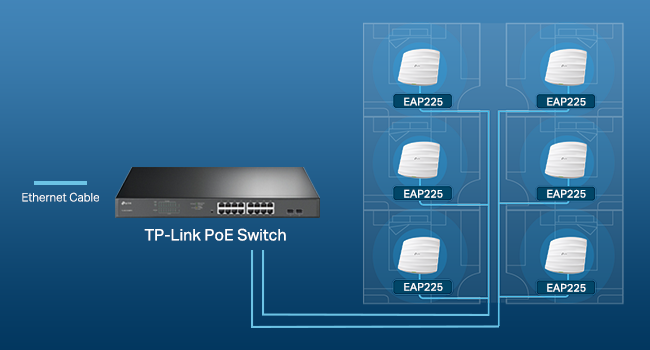
I bought one of these for the opposite end of my ranch-style house, since my router's wifi was weak at that distance. I like that it's POE, so I only had to run a CAT5e cable to it and hook it to my POE switch (although it comes with its own POE power injector which is a nice bonus). The setup was fairly straight forward using the app to get it set up initially, and later using the built-in web admin page through a browser for additional changes. It puts out a decent signal, but I was a bit disappointed in that it didn't quite make it from its location to my office, which is on the same level, but about 50 feet away with about 3 hollow (stud/drywall) walls between. My office seems to be somewhat of a dead zone in the house due to its layout, so I ended up buying another for near my office, creating a triangle around the perimeter of the house with my router and the two APs. When you're within 20-30 feet of the AP and no walls, it works very well and signal is quite strong. In my tests, it provided full throughput for my internet service, just make sure you connect it to a gigabit router and/or POE switch or it will only operate at the speed of the slowest link. My existing POE switch was only 100 mbps (for security cameras), so the switch was limited to that throughput, so I added a gigabit POE switch and connected the APs to that instead and they now show full throughput on internet speed tests. One feature I really liked was the ability to add additional SSIDs. During initial setup it asks for your 2.4GHz and 5GHz passwords, but I also have a 2.4GHz and 5GHz guest networks on my router. After the initial setup, I went into the browser interface and found a small "add" (+) button near the list of SSIDs and I was able to add the guest network SSIDs for each frequency. I was also able to select them as "Guest" networks in the AP configuration pages. I duplicated the SSIDs from my router and there doesn't seem to be any conflicts. Wirelress devices just seem to pick up their connection from the closest AP or the router depending on where they are in the house, which is how I hoped it would work. For installation, the mounting plate attaches to the ceiling, then you "twist" the device into to three "tabs" until it lock in place. This part was a bit tricky as the tabs seemed tight. Getting it to twist into the tabs is difficult to align as you place the AP over the bracket, and I really had to push the AP up and rotate it hard to get it to snap into the bracket. The "snapping" process on one of them took a lot of force and I thought I broke it when it finally locked in, but it was fine. It has a tab you can insert a paper clip into to release it from the bracket for removal. I think the mounting plate design could use a bit of a rework given my experience, but it's certainly not a reason to pass this by. Another inconvenience was the fact that updating the firmware causes all your settings to be lost. This happened with both devices. I hope future updates don't require a full reconfiguration of the device each time. I'm looking forward to great wifi throughout my house now. So far, the devices that were previously located in a "dead" or "weak" spot (for example, streaming boxes that could only able to get 1-3 mbps) now get 90+ mbps so it definitely solved those issues. Just be aware that depending on the size and layout of your home, you may need more than one. I didn't want this to be visible in the center of my living room ceiling (which is the center of my home), so I had to install them in hallways which are more on the perimeter of the home, thus needing more than one to get full coverage. For the price, this was an excellent choice for our home and I highly recommend it.
B**E
Surprisingly good
I've used the plug-in wireles extenders with mixed results. I finally broke down and ran Cat 6 cable under the house and up through a wall to the attic, finally mounting the AC1350 on a hallway ceiling. The big advantage is with the injector you can place this up to 100M from your router and place it in the spot with no coverage (the wireless plug in extenders are usually placed half way between the router and the dead zone). It is important to get the right kind of Cat 6 cable. It needs to be all copper and CMP (plenum) for below floors and above ceilings or CMR (riser) if running through walls. Fire code stuff you should read about since the "injector" is injecting voltage into the cable. Once I got the cable run and the clips attached installation was fairly easy but the mobile application was confusing at first. The software defaults to management of multiple units for larger organizations. On the Omada application, most DIY homeonwers will choose be "stand alone" option. When I did that it recognized my single unit. With that sorted out the unit worked really well and seems to provide even better coverage than my Motorola cable modem/wireless router at the heart of our home network. This will eventually replaced by their newer models with greater speed and features, but I prefer a reliable and proven device rather than chasing the new tech.
P**N
Great access point for home users!
Shortly after setting up our WiFi in our new home, it became obvious that having our WiFi router in the basement where the cable modem is located wasn't going to cut it. The cement walls absorbed much of the WiFi signal and, even in our small home with a 40'x28' footprint, we had dead spots. I needed to move our WiFi access to the attic. I bought two TP-Link Omada access points, this Omada AC1350 dual-band router for my wife's and my phones, tablets, and laptops, plus an Omada N300 unit to support our Internet of Things (IoT) and guest WiFi users. Both units are powered by Power-over-Ethernet adapters in the basement connected to a new, Mikrotik hEX small-business router. Using a separate router allows me to segregate our guest users and IoT devices (smart home stuff, Kindles, Alexa speakers, and so on) onto their own, less-secure network and put our private computing resources where our financial and personal data resides. (Note: Our streaming devices, Roku TVs and the like, are connected to the same logical network as our IoT stuff, but have wired connections.) Both Omada access points have been champs. Located in our attic, they were easy to set up as stand-alone access points using TP-Link's Android app, and both provide a strong signal everywhere in our 3-level (basement, main level, and attic) home with an 1100 square foot footprint that extends into our front and back yard. We no longer have dead zones. (Yay!) I only ran into one problem with the Omada AC1350. It was a funny, if embarrassing, problem! The Omada N300 and AC1350 access points are slightly different sizes but have very similar-looking wall/ceiling mounting plates. I spent an unreasonable amount of time trying to figure out why the AC1350 wasn't connecting to its mounting plate before it dawned on me I was trying to hang it on the N300's base! Since then, everything has worked flawlessly, and I can recommend either solution. Pros for the TP-Link Omada AC1350 Access point: * Low cost. * Strong signal. * Plenty of bandwidth for most home users. Can easily support one to two dozen devices. * Very easy to configure as a stand-alone unit with TP-Link's Android app. (The IoS app is probably about the same.) * Comes with a Power-over-Ethernet injector. * Supports mesh WiFi if you add additional access points and a mesh controller. * Reasonably unobtrusive, about twice the size of a smoke detector. * The power indicator light can be turned off in software. Cons: * Great for home use, but probably underpowered for a business environment. I'd move up to an AC1750 access point for office use.
I**0
So far so great!
I'm a network engineer. I usually work with Cisco enterprise gear, some HPE/Aruba, Ruckus, a bit of Cisco Meraki (not a fan). I usually laugh at gear like TPlink, UniFy/Ubiquity etc. No, I probably will not ever recommend or deploy this TPlink Omada stuff at a customer site for any application. Maybe a normal office space for someone with no budget and need WiFi for casual purposes or for customer hotspot convenience. I got seriously pissed at my home WiFi system when I incorporated a bunch of cheap Chinese smart home products into my network (smart bulbs and electrical receptacles) and my UniFi system couldn't handle them. Sure - it was the junk bulbs most likely, but I wasn't about to buy all Phillips Hue or some other overpriced solution. I tried updating the controller software and the AP firmware and manually tweaking settings that probably made matters worse. I got mad enough to chuck the UniFi system, which was getting old anyway. I figured I'd try a Cisco Mobility Express system with 1832i APs - that's entry-level Cisco stuff. I actually hate Cisco ME, but figured I'd try it as it was the least expensive Cisco option. That worked pretty well actually - solved the problem with the cheap Chinese crap bulbs. But I had two client devices - an ASUS laptop and an older Microsoft Surface Pro that absolutely refused to connect to WiFi at all. I did the usual stuff - firmware, drivers, and settings. No go, so I chucked the Cisco system too. At about 11 at night after consuming too much Scotch while window shopping on Amazon, a few days later a pair of these TPlink APs hit my porch. I got them up and running without any trouble (I think they'll be perfectly reasonable for non-network engineers to handle). The mounting brackets are cheap crap. But that's compared to the solid steel stuff that I'm used to, and I think most people will probably just throw these on a shelf or a metal filing cabinet or something (don't do that, by the way) so most probably won't care. But call me impressed. These are not junk. I'm nearly certain that TP-Link's APs are a knock-off of UniFi. It really looks and acts so similarly. But they seemed to have done something really right with these. ALL of my devices, the not-so-smart bulbs, the Amazon Echos, the Roku, the HT receiver, the game systems the laptops and tablets, AC units, smartphones, doorbell... everything just connected and WORK. And work well and fast enough for me. I'm not going to get into data rates (speed) - people get really stupid about that stuff and really have no understanding of it. Same goes for coverage area. I only need 802.11AC - nothing more. Anything that NEEDS to be faster than that (or likely more stable/reliable) is getting a CABLE (or an Etherchannel) on my network. Period. Docking a star for the junk mounting backets and the idiotic fact you have to go to TP-Link's website to download the firmware updates. Really... the controller tells me an update is available and can't just let me click to download and install? I hope they change that soon. Other than that, time will tell with these. I don't expect them to last long - I'll be happy with two years. Cheap enough to just replace a dead unit. As long as TP-Link doesn't break them with a firmware update, I probably won't need to chuck these anytime soon.
R**R
Does what I need it to do, roaming seems to work with my att fiber router (BGW320-500)
I'm renting a townhouse with cat6 ran to the ceiling on all 3 floors for in ceiling access points. The router that ATT provided with their fiber service (a BGW320-500) is fairly strong and can make it's way up from the basement closet (where the fiber connection is) all the way to the top floor to the point where it is "usable" but speed definitely drops down to sub 100mbps, and when several devices are using data on the top floor, all the dropped packets can slow the entire network down. Enter this device, which I bought as a trial to use the built in cat6 cable, and possibly buy another 1 or 2 with an OC200 controller (or run the controller software on hardware I already have running) and just disable the BGW320-500's antenna all together. The BGW320-500 doesn't put out PoE, so I needed the power adapter, but it works fine (although its a bit messy in my networking closet and would like to buy a PoE switch eventually). I did fry my network cable tester by having the signal emitter on the ceiling end to identify the right cable in the network cabinet, and then connecting the power injector on to the cabinet end, sending PoE *into* the signal emitter. By the time I realized what I did, it was non-functional and had burnt electronics smell. If you need a cable tester to find the correct cable, be sure to remove the device before connecting to PoE. After connecting the access point to the PoE live cable, it turned right on. It took maybe 30 seconds to mount into the drywall ceiling with the adapter plate. It comes with drywall anchors but the device can't weigh more than a couple of pounds, and 3 screws seems to hold it fine without any additional weight hanging from it. When first connecting it, it was able to hang from just the cat6 cable without any real amount of stress, so if by some chance we have an earthquake and it falls from the screws, it still shouldn't fall to the ground. After that, it's as simple as finding the IP in your router's client table, going to the web access panel, and setting up the SSID/Password (I used the same as my home network). There's even a feature buried in the configuration that you can disable the status LED, which I did, considering it's mounted right outside of my bedroom door. After the SSID/Password were set up, it worked flawlessly. You can see which clients are connected directly to it. The ATT router config menu even shows it as an "access point" which I believe helps it recognize the roaming 802.11 standards, and they somehow control the handoff amongst the two devices with no extra configuration needed, because several devices have switched over to the access point without being power cycled. My phone gets upwards of 280-300 mbps on the top floor now, which was only ~100mbps before, so it's definitely a massive improvement. No more loading delays where I have to drop wifi and connect to 5g to keep moving, everything seems to have "full service" level speed/connection. It actually works so well that my plans to buy another one or two with a PoE switch and a dedicated OC200 controller have been sidelined until I have some more "play money" spending cash, because I just simply don't need them anymore. It seems to cover the largest dead spot in the house, and now I get reliable connection across all 3 floors without needing to spend a couple hundred bucks. Finishing out the full 3 AP setup with a PoE switch is just a "nice to have" luxury at this point.
S**M
Small-business-grade Mesh Networking
I got my first AC1350/EAP225 way back in 2018 during a Black Friday sale. I got a second one this week to see how well the mesh networking feature works. For the price, I am really impressed. Before buying, I was concerned because one other reviewer said his mesh network collapsed when he powered down the PC that hosted the controller software, but that hasn't been a problem for me so far. I shut my home PC down over night, and noted that both APs were up and serving traffic just fine when I woke up this morning (before turning on my PC to run the controller software again). My second AP isn't connected to anything other than a garage wall outlet, so I know it's working without the controller running when I'm on the other end of my property surfing YouTube on a laptop. When I fired up my PC and the controller software this morning, I noted half a dozen clients from my in-laws RV in the driveway were already connected and merrily surfing away while my PC remained off. Speaking of the controller software, it's pretty nice. Some of the English is a little broken, which I find funny, but otherwise, the software is really high quality, especially for being free. It has lots of features like channel strength scanning, showing a map of clients, event log, available bandwidth, who's using which bands, signal strength, error rate, throughput, and a lot of other stuff. It's pretty fancy. It looks like the controller software is built with Java and runs some sort of Java servlet container. You access the UI via browser. I noted that the software uses a self contained Mongo database server. I elected to install the software to my "Program Files" folder, so I had to adjust some NTFS permissions to allow Mongo db write access and make it work correctly, but it otherwise doesn't need to run as Administrator. If you have no idea what I'm talking about here, this EAP setup may not be for you, but if you're an IT person like me, it's great. I'm a software engineer that didn't even know what 'mesh networking' was exactly, last week, and I found it pretty easy to learn and implement. The 'Omada' software is available and regularly updated on the TP-Link website, and I had to download new firmware for my APs right off the bat, too. Once the software is running though, it's pretty simple to provision the access points. Just make sure you know what you're doing with WPA2, passwords, etc. to keep your network to yourself, of course. The package doesn't have any of the BS bloat that ships with home version mesh network packages like 'Antivirus' junk and 'Parental Controls', that I can tell. Just pure, professional, wireless networking. It does have things like 'Guest Network', and some other bells and whistles geared toward small businesses. This package feels like it was made for IT people and an office, and that's good.
C**C
Pretty Much As Perfect As It Gets!!
First of all, let's get this out of the way. There's a review that states: "You can’t program this device (create and ssid and password protect your WiFi) without downloading their app that logs all the sites you visit TP Link shares this information with their 'partners' per their privacy policy..." Let me explain what I did and let you be the judge. I installed one. (I ordered two and they're both installed now.) Then I discovered its IP address using Advanced IP Scanner. (I also could have used IPScan or looked at a status page on my router.) At no time did I use a mobile device for anything, let alone download an app. From there, I its (really GOOD) GUI interface, turned off its DHCP and set the IP address I wanted it to be, using Firefox (I could also have used Chrome, Opera, or K-Meleon, all of which I have installed. I then went back in and set everything else the way I wanted it. If the reviewer was talking about the Omada software (which I don't use), he should have stated that. I hope this will allow you to make it past that review and read some "real" reviews. There are no cons that I can think of except those dictated by the limits on WiFi imposed by the FCC. The range is not miraculous, but it's VERY good. Really nice 360 degree coverage!! (When mounted on the ceiling, anyway!) It's extremely competent and secure, with lots of settings. Guest networks with lots of settings. Pretty much each and every setting can be set for each band (2.14 or 5GHz) and for the guest networks - separately. I have a 10 foot ceiling throughout, with ceiling tiles. I can't tell you how pleased I was that long, thin screws, "fender" washers and wingnuts were included just for that!! I can almost say it's a tool less installation, but you do have to cut a hole in the ceiling tile. I used my Swiss Army Knife. They look really nice. The power LED is very bright and visible and can be turned on or off in the settings, too. Two of them have been running flawlessly for almost two months now. It's a 3000 square foot building and it's notorious for "eating" RF. It's cider block and it even has some cinder block wall on the inside. The best cordless phones made can barely make it from one end to the other and die almost as soon as one walks outside. These two EAP's cover it completely and even reach outside! There is nowhere I can go where the signal strength isn't at least "Good". In most places, it's "Excellent". Now there's WiFi outside, too, as long as one doesn't stray too far. One is powered by the PoE adapter that came with it, and the other is powered by a PoE gigabit switch. They work great either way. And they're as fast as gigabit Ethernet, anyway! I can't think of anything I've ordered from Amazon that I like more than these things! I'd be happy if I'd spent twice the money for them; just to avoid the "junk" out there! I'm starting to have all kinds of faith in TP-Link - especially when it comes to WiFi!!
M**N
Fast and Easy VLAN capable Multi-Network System, No Need For Controller
I'm a bit of a nerd and I run a home server, so I wanted to split my network up into different subnets using VLANs. My only holdup was wifi devices since I couldn't risk bricking one of my access points using alternate firmware. These are out-of-the-box capable of setting VLANs to separate wifi networks, which is a commodity (aside from using open source firmware). You can look at Ubiquiti, but they are more costly than these. At $60 a pop for the EAP225 this was an easy buy and I have had almost no issues setting it all up. If you have a hardware controller with them, then its even easier. The hardest part was getting the controller software running in a VM, the dependencies took a bit to get right, but after that was up and running. I could have used the phone app to do it all, but I wanted the extra features you only get with the controller. If you have a raspberry pi or NAS you could forego the controller hardware and still get the features, which is a huge plus, usually big names handcuff you to their hardware to make a few extra bucks, but not in this case! The features you get are beam forming (better range and speed) and fast roaming (faster switching between access points in a mesh). These will work just fine without a controller! If you are going cheap you don't have to get it, you can always get it later, just use the phone app to set up the access points. These are all POE devices, so it comes with an injector. I haven't done this, but I read that if you set it up in a mesh, you can actually use the POE LAN side to extend to another wired device or switch. So this works as a wireless bridge as well. The only part that takes some getting used to is that when you lose your DHCP server (usually your router), the wifi networks disappear entirely. I thought that was very odd and something was wrong, but when it comes back they come back with it. That could be an artifact of how I have the mesh set up, but it is still odd. That really doesn't happen often unless you have a hardware failure, it was mostly when I was messing with VLANs and screwing things up. They also have very good range, better than my Asus RT-AC3200 APs that they replaced.
J**C
Fast & easy
I don't know the brand TP-LINK very well but decided to try a couple of these. VERY impressed. Easy to set-up/update/config and excellent throughput and range. So far zero complaints. Will buy again.
V**R
Best WiFi AP
I was struggling to find a better access point which would give max speed and best coverage. I now have zero issues with WiFi. It’s as good as wired network. Go for it without doubt.
M**D
ممتاز
التغطية ممتازة جدا سعره رخيص جدا مقارنتا بالشركات الثانية جودة التصنيع لابأس بها التثبيت للنوع ذا بس للسقف بتواجه صعوبه لو بتثبته بالجدار الجانبي
S**Y
Excellent
I already had two of these and got this one to replace the Telstra modem Wi-Fi as I replaced the modem with a TP-link router (Er605) but they don’t have Wi-Fi. I connected this unit to a TP-link PoE switch (TL-SG2008P) to provide power to the unit. My other two units are using the PoE injectors that are included. I have my network managed using the Tp-link Omada controller and it was seamless, was able to easy firmware updates and configure SSID’s etc simply. I would recommend the units as they seem extremely stable and give very good coverage.
S**T
The product was good as described
Good procuct
Trustpilot
2 weeks ago
2 weeks ago